How to Choose the Right Visuals for Your Presentation is a critical skill in today’s visually-driven world. From the boardroom to the classroom, the ability to communicate effectively through visuals can make or break your message. This guide will help you understand how to select the perfect images, charts, and videos to captivate your audience and leave a lasting impression.
We’ll delve into understanding your audience, defining your presentation’s objective, and selecting the right visual types. You’ll learn about the power of color and design, ensuring clarity and readability, integrating visuals seamlessly, navigating licensing, and testing your visuals for maximum impact. Prepare to transform your presentations from ordinary to extraordinary.
Understanding Your Audience
To create impactful presentations, understanding your audience is paramount. Tailoring your visuals to their demographics, preferences, and knowledge levels ensures your message resonates effectively. This section will delve into audience segmentation and provide practical examples to help you choose the right visuals for any presentation.
Identifying Audience Demographics and Visual Preferences
Different audience segments exhibit varying visual preferences. Recognizing these differences allows you to create more engaging and memorable presentations.
- Age Groups: Younger audiences often respond well to dynamic visuals, animations, and bright colors. Older audiences may prefer clearer, more traditional layouts with less clutter.
- Professions: Technical professionals might appreciate detailed diagrams, charts, and data visualizations. Creative professionals might prefer visually rich presentations with strong design elements.
- Interests: Understanding your audience’s interests helps you select visuals that align with their passions. For example, if your audience enjoys travel, incorporating images of exotic locations would be effective.
- Cultural Backgrounds: Be mindful of cultural sensitivities when selecting visuals. Certain colors, symbols, or imagery might be perceived differently across cultures.
Tailoring Visuals to Specific Groups
Adapting your visual choices to specific audience characteristics increases their engagement and comprehension. This can be done by considering their background, experience, and expectations.
- Age-Specific Considerations: For a younger audience, use bold colors, animations, and interactive elements. For example, a presentation on climate change for elementary school students could use animated characters explaining the impact of pollution. For older audiences, use a more classic design, avoiding excessive animation and ensuring readability.
- Professional Adaptations: Presenting to engineers? Use detailed schematics, blueprints, and technical diagrams. Presenting to marketers? Focus on infographics, brand visuals, and customer journey maps.
- Interest-Based Visuals: If presenting to a group of outdoor enthusiasts, include high-quality photographs of nature, hiking trails, and camping gear. For a group of gamers, use screenshots, gameplay footage, and character art.
Visual Examples for Diverse Audiences
The following table provides examples of visuals and their effectiveness for different audience segments.
| Visual Example | Target Audience | Rationale | Description |
|---|---|---|---|
| Animated Explainer Video | General Public, Young Adults | Easy to understand complex concepts, engaging, visually appealing. | An animated video featuring cartoon characters explaining the benefits of a new financial product, with bright colors and simple language. |
| Detailed Data Visualization (e.g., Bar Graph, Line Chart) | Analysts, Researchers, Professionals | Presents data clearly, allows for easy comparison and analysis. | A bar graph comparing sales figures across different regions, highlighting trends and performance metrics. |
| High-Quality Photography | Travelers, Nature Enthusiasts, General Audience | Evokes emotion, creates a sense of place, visually appealing. | A stunning photograph of a mountain landscape with a clear blue sky, used to illustrate a presentation about adventure tourism. |
| Infographic | General Audience, Professionals | Summarizes complex information in an easily digestible format, visually engaging. | An infographic showing the steps of a project management process, with icons, concise text, and a clear flow. |
Defining Your Presentation’s Objective
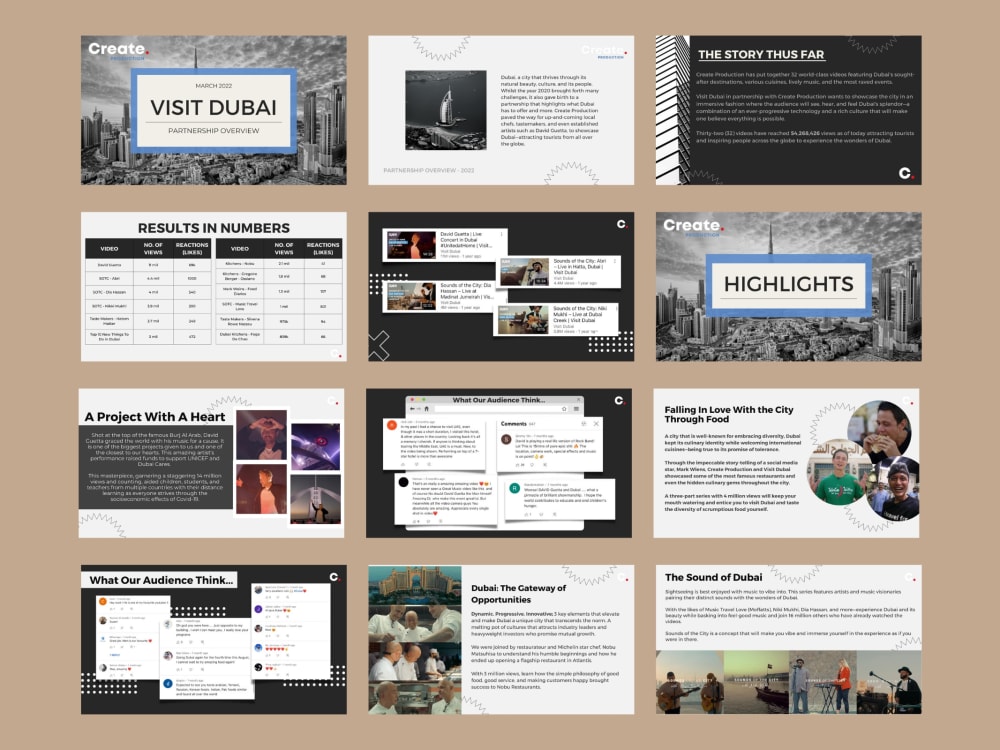
Understanding your presentation’s objective is paramount in selecting the most effective visuals. Your goal dictates not only thetype* of visuals you choose, but also their style, complexity, and overall impact. A well-defined objective ensures your visuals support, rather than distract from, your core message.
Goal Influence on Visual Choices
The presentation’s purpose directly shapes your visual strategy. Whether you aim to inform, persuade, or entertain, your visual choices must align with that primary goal. Consider this: a complex infographic might overwhelm an audience simply seeking basic information, while a visually sparse presentation may fail to captivate an audience you’re trying to convince. Therefore, the objective acts as the guiding star for your visual selection process.
Visual Selection Based on Objective
Different presentation objectives necessitate different visual approaches. The key is to select visuals that resonate with your audience and effectively convey your message.
Informative Presentations
Informative presentations prioritize clarity and accuracy. The objective is to educate the audience, so visuals should facilitate understanding and retention of information.
- Charts and Graphs: Use charts (bar, line, pie) to illustrate data trends, comparisons, and relationships. For example, a line graph effectively shows the growth of a company’s revenue over time.
- Diagrams and Illustrations: Diagrams explain complex processes or structures. For instance, a diagram of the human heart visually simplifies its intricate workings.
- Photographs: High-quality photographs can show real-world examples, providing context and illustrating concepts. A photograph of a polluted river can highlight the impact of environmental damage.
- Maps: Maps are essential for showing geographical data, distribution patterns, or locations. A map indicating the spread of a disease can provide a visual understanding of its reach.
Persuasive Presentations
Persuasive presentations aim to influence the audience’s beliefs or actions. Visuals should evoke emotion, build credibility, and support your arguments.
- Compelling Imagery: Use impactful photographs or videos to connect with the audience emotionally. A photograph of a starving child can evoke empathy and support for a charity.
- Before-and-After Comparisons: Demonstrate the benefits of your proposal or product. For instance, before-and-after images of a home renovation showcase the transformative results.
- Testimonials and Quotes: Include quotes from satisfied customers or experts to build trust and credibility. Displaying a quote on a slide can lend weight to your claims.
- Infographics: Use infographics to present complex data in an engaging and easily digestible format, supporting your arguments with facts and figures. An infographic showing the benefits of a new product can persuade potential buyers.
Entertaining Presentations
Entertaining presentations aim to captivate and amuse the audience. Visuals should be engaging and memorable.
- Videos and Animations: Use short, dynamic videos or animations to capture attention and add humor. A funny animation can lighten the mood and reinforce your message.
- Humorous Images and Memes: Inject humor to keep the audience engaged. Using relevant memes can make your presentation more relatable and memorable.
- Interactive Elements: Incorporate polls, quizzes, or interactive graphics to involve the audience. An interactive quiz about a topic can keep the audience engaged and entertained.
- High-Quality Photography: Use stunning visuals that are visually appealing and relevant to the topic. For example, using images of breathtaking landscapes for a travel presentation.
Visual Comparison: Informative vs. Persuasive Presentations
The following table provides a concise comparison of visual strategies for informative and persuasive presentations:
| Presentation Objective | Primary Visual Focus | Visual Examples | Emphasis |
|---|---|---|---|
| Informative | Clarity and Accuracy | Charts, graphs, diagrams, photographs | Data visualization, simplification of complex concepts |
| Persuasive | Emotional Impact and Credibility | Compelling imagery, before-and-after comparisons, testimonials, infographics | Building trust, influencing attitudes, showcasing benefits |
Selecting the Right Visual Type
Choosing the right visuals is crucial for a presentation’s success. Effective visuals clarify complex information, engage the audience, and enhance memorability. This section explores the advantages and disadvantages of various visual types, compares their effectiveness for conveying data, and provides a detailed example of a complex chart.
Advantages and Disadvantages of Visual Types
Understanding the strengths and weaknesses of each visual type allows you to make informed choices that best suit your presentation’s goals. Consider these aspects carefully to maximize impact and minimize potential drawbacks.
- Charts and Graphs: Charts and graphs are excellent for displaying data trends, comparisons, and relationships.
- Advantages: They present data in a concise and easily understandable format. Different chart types cater to different data visualizations (e.g., line graphs for trends, bar charts for comparisons, pie charts for proportions). They allow for quick identification of patterns and outliers.
- Disadvantages: They can be overwhelming if too much data is presented. They require careful design to avoid misinterpretation. Choosing the wrong chart type can distort the data.
- Images: Images, including photographs, illustrations, and icons, are powerful for engaging the audience and conveying emotions.
- Advantages: They capture attention quickly. They can illustrate abstract concepts and make presentations more visually appealing. They enhance memorability.
- Disadvantages: They may lack the precision of data visualization. They can be distracting if not relevant to the content. Copyright issues must be considered.
- Videos: Videos combine visual and auditory elements to provide dynamic presentations.
- Advantages: They are highly engaging and can convey complex information in a memorable way. They can show processes, demonstrations, and real-world examples effectively.
- Disadvantages: They require careful planning and production. They can be time-consuming to create or find. Technical issues with playback can disrupt the presentation.
- Animations: Animations add movement and dynamism to presentations.
- Advantages: They can explain complex processes step-by-step. They maintain audience engagement by adding visual interest. They can reveal information progressively.
- Disadvantages: They can be distracting if overused. They require specialized software and skills. They may be time-consuming to create effectively.
Comparing Effectiveness for Conveying Complex Data
The effectiveness of a visual type in conveying complex data depends on the nature of the data and the desired message. Some types excel at showing trends, while others are better for comparing values.
- Line Graphs: Ideal for showing trends over time. For example, a line graph could depict the stock price of a company over a five-year period, clearly illustrating fluctuations and overall growth or decline.
- Bar Charts: Excellent for comparing different categories. A bar chart could compare the sales figures of different product lines within a company, making it easy to identify the top performers and underperformers.
- Pie Charts: Useful for showing proportions or percentages of a whole. A pie chart could represent the market share of different companies in an industry, visually demonstrating the relative size of each player.
- Scatter Plots: Effective for showing the relationship between two variables. A scatter plot could illustrate the relationship between advertising spending and sales revenue, revealing whether there’s a positive correlation.
- Heatmaps: Excellent for visualizing large datasets with color-coded values. For instance, a heatmap could display website traffic patterns, with warmer colors representing higher traffic areas on a page.
Detailed Description of a Complex Chart
A complex chart, such as a waterfall chart, is designed to show how an initial value increases or decreases through a series of additions and subtractions, culminating in a final value. It’s commonly used in financial analysis and project management.The waterfall chart consists of the following components:
- Initial Value: The starting point of the chart, represented by a bar.
- Intermediate Values: Bars representing increases (positive) or decreases (negative) in the value. These bars are often color-coded (e.g., green for increases, red for decreases).
- Final Value: The end result, also represented by a bar, showing the cumulative effect of all the changes.
- Floating Bars: The intermediate bars “float” to visually connect the changes to the initial and final values.
- Labels: Labels on each bar indicating the value and the category it represents (e.g., Revenue, Expenses, Profit).
- Connector Lines: Lines connecting the bars to emphasize the cumulative effect of the changes.
Purpose: The primary purpose of a waterfall chart is to illustrate the step-by-step contribution of different elements to the overall change in a value. For example, in a financial context, it can show how different revenue streams, expenses, and other factors contribute to a company’s net profit. It’s also used in project management to track the impact of various tasks on the overall project budget.
A waterfall chart allows for an easy and intuitive understanding of how the starting value transitions to the ending value.
HTML Table: Visual Type, Best Use Case, Pros, and Cons
The following table summarizes the characteristics of different visual types.
| Visual Type | Best Use Case | Pros | Cons |
|---|---|---|---|
| Charts and Graphs | Displaying data trends, comparisons, and relationships. | Concise data presentation, quick identification of patterns, various chart types for different data. | Can be overwhelming with too much data, potential for misinterpretation, requires careful design. |
| Images | Engaging the audience, illustrating abstract concepts, conveying emotions. | Captures attention, enhances memorability, visually appealing. | May lack precision of data visualization, can be distracting if irrelevant, copyright concerns. |
| Videos | Demonstrations, showing processes, real-world examples. | Highly engaging, memorable, effective for complex information. | Requires planning and production, can be time-consuming, potential for technical issues. |
| Animations | Explaining complex processes step-by-step, adding dynamism. | Engaging, reveals information progressively, maintains audience interest. | Can be distracting if overused, requires specialized skills, time-consuming to create. |
The Power of Color and Design
Color and design are powerful tools that can significantly impact how your audience perceives and engages with your presentation. Understanding the principles of color psychology and effective visual design allows you to create visuals that not only look appealing but also communicate your message effectively and leave a lasting impression. Mastering these elements transforms a good presentation into a memorable one.
Color Psychology and Emotional Impact
Colors evoke specific emotions and associations, which can be leveraged to influence your audience. Careful color selection can enhance the impact of your message and guide the viewer’s emotional response.
- Red: Often associated with energy, passion, and excitement. It can also signify danger or urgency. Use red sparingly to draw attention or convey a sense of importance. For example, a red progress bar in a presentation can highlight critical deadlines.
- Blue: Typically linked to trust, stability, and professionalism. It is a calming color that can be used to create a sense of security. Consider using blue in presentations where you want to build credibility, such as financial reports or healthcare presentations.
- Yellow: Represents optimism, happiness, and creativity. It’s a vibrant color that can grab attention. Use yellow strategically, as excessive use can be overwhelming. Yellow is effective for calls to action or highlighting key information.
- Green: Symbolizes growth, health, and nature. It can also convey a sense of wealth or sustainability. Green is suitable for presentations on environmental topics, financial growth, or wellness initiatives.
- Orange: A blend of red and yellow, orange conveys enthusiasm, excitement, and warmth. It is often used for calls to action, similar to red, but with a less aggressive feel. Orange can be used in marketing presentations to highlight offers or promotions.
- Purple: Associated with creativity, royalty, and luxury. It can add a touch of sophistication to your presentation. Use purple in presentations related to arts, entertainment, or high-end products.
- Black: Represents power, elegance, and sophistication. It can create a strong visual contrast. Use black as a background to make other colors pop, or in presentations where you want to convey a sense of authority.
- White: Symbolizes purity, cleanliness, and simplicity. It provides a neutral background that makes other colors stand out. White is commonly used in presentations to create a clean and uncluttered look.
Principles of Effective Visual Design
Applying the principles of effective visual design ensures your visuals are clear, engaging, and easy to understand. These principles work together to create a cohesive and impactful presentation.
- Balance: The distribution of visual elements within a design. Balance can be symmetrical (formal, equal on both sides) or asymmetrical (informal, using different elements to create a balanced feel). Balance prevents the design from appearing lopsided and creates a sense of harmony. For instance, a presentation slide might use symmetrical balance by placing a title and image of equal visual weight on either side of the slide.
- Contrast: The difference between elements within a design. Contrast can be achieved through color, size, shape, or texture. High contrast draws attention to specific elements and improves readability. Using a dark background with light text provides excellent contrast, making the text easier to read.
- Proximity: The closeness of elements to each other. Related elements should be grouped together, creating a visual connection. This helps the audience understand the relationships between different pieces of information. For example, in a chart, placing the chart title close to the chart itself makes it clear what the chart represents.
- Repetition: The consistent use of elements throughout a design. This creates a sense of unity and reinforces the brand or message. Using the same font, color scheme, and graphic style across all slides ensures a consistent look and feel.
- Alignment: The arrangement of elements in a straight line or grid. Proper alignment creates order and improves the overall visual appeal. Aligning text to the left or right, or centering it, provides a clean and organized look.
Common Design Mistakes and How to Avoid Them
Avoiding common design mistakes is crucial for creating professional and effective presentations. Understanding these pitfalls and how to correct them will significantly improve your visuals.
- Too Much Text: Overloading slides with text overwhelms the audience. Use concise bullet points, key phrases, and visuals to convey information. Instead of lengthy paragraphs, summarize information using short, impactful sentences.
- Poor Font Choice: Choosing fonts that are difficult to read or don’t match the presentation’s tone. Use clear, legible fonts like Arial, Calibri, or Helvetica. Limit the number of fonts used and ensure they complement each other.
- Inconsistent Design: Using different styles, colors, and layouts across slides creates a disjointed look. Maintain a consistent design throughout the presentation by using a template or pre-defined style guidelines.
- Lack of Contrast: Insufficient contrast between text and background makes it difficult to read. Ensure there is enough contrast by using dark text on a light background or vice versa. Avoid using similar colors for text and background.
- Cluttered Layout: Overcrowding slides with too many elements. Use white space effectively to give the eye a rest and to highlight key information. Ensure each slide has a clear focal point.
Visual Guide: Color Palettes and Design Principles
This visual guide provides examples of how to apply color palettes and design principles effectively.
Color Palette Example 1:
Theme: Professional and Trustworthy
Colors: Dark Blue (#003366), Light Blue (#6699CC), White (#FFFFFF), Gray (#CCCCCC)
Application: Use dark blue for headings, light blue for body text, white for backgrounds, and gray for subtle dividers or accents. This palette is suitable for financial reports or presentations about technology.
Color Palette Example 2:
Theme: Energetic and Engaging
Colors: Orange (#FF6600), White (#FFFFFF), Dark Gray (#333333)
Application: Use orange for call-to-action buttons, white for backgrounds and body text, and dark gray for headings and accents. This palette is appropriate for marketing presentations or sales pitches.
Design Principle Example: Contrast
Before: A slide with light gray text on a slightly darker gray background.
After: The same slide with white text on a dark blue background.
Explanation: The “before” example is difficult to read due to low contrast. The “after” example uses high contrast, making the text easily readable and drawing attention to the content.
Design Principle Example: Proximity
Before: A chart title placed far away from the chart itself, with unrelated elements in between.
After: The chart title placed directly above the chart, with no other elements in between.
Explanation: The “before” example creates confusion about which chart the title refers to.The “after” example uses proximity to clearly associate the title with the chart, improving clarity.
Ensuring Visual Clarity and Readability

Ensuring your visuals are clear and easy to understand is paramount to a successful presentation. No matter how insightful your content, if your audience struggles to decipher your visuals, your message will be lost. This section delves into the crucial aspects of achieving visual clarity, focusing on font selection, white space utilization, and simplification techniques.
Choosing Fonts and Font Sizes for Optimal Readability
The choice of font and its size significantly impact how easily your audience can absorb information. Selecting the right combination can make the difference between an engaging presentation and a confusing one. Readability is key, so choose fonts that are easy on the eyes, even from a distance.
Understanding the Importance of White Space
White space, also known as negative space, is the empty area around text and visuals. It’s not just about what’s
- on* the page; it’s also about what’s
- not* on the page. Effective use of white space dramatically improves readability and visual appeal.
Simplifying Complex Visuals
Complex visuals can overwhelm your audience, hindering understanding. Simplifying these visuals is crucial for effective communication. The goal is to distill the core message into an easily digestible format.
Best Practices for Font Selection
Font selection is a critical aspect of visual communication. Choosing the right font, and size, ensures your audience can easily read and comprehend your message. Consider these best practices:
- Choose Readable Fonts: Opt for fonts designed for clarity, especially in presentations where the audience might be viewing from a distance.
- Sans-serif Fonts for Body Text: Sans-serif fonts, like Arial, Helvetica, and Calibri, are generally preferred for body text in presentations. They are clean and easy to read on screens.
- Arial: A widely used, clean sans-serif font, suitable for body text and headings.
- Helvetica: Another classic sans-serif font known for its clarity and versatility.
- Calibri: A modern sans-serif font, designed for on-screen readability.
- Serif Fonts for Headings (Optional): While less common, serif fonts like Times New Roman or Georgia can be used for headings to provide contrast. However, ensure they are used sparingly and in larger sizes for legibility.
- Times New Roman: A classic serif font, best used for headings when you want a more formal look.
- Georgia: A serif font designed for readability on screens, suitable for headings and some body text.
- Consider Font Size: The size of your font directly impacts readability. Use a font size large enough for the audience to read comfortably from the back of the room.
- Body Text: A minimum of 24 points is recommended for body text.
- Headings: Headings should be significantly larger than body text, typically starting at 36 points or higher, depending on the length and importance of the heading.
- Limit Font Choices: Stick to a maximum of two or three different fonts throughout your presentation to maintain visual consistency and avoid overwhelming the audience.
- Ensure Contrast: Choose font colors that contrast sharply with the background to enhance readability. Avoid using light text on a light background or dark text on a dark background.
- Test Your Presentation: Always test your presentation on the screen and in the room where you will be presenting to ensure that the font sizes and colors are legible.
Licensing and Copyright Considerations
Creating visually compelling presentations is only half the battle. You also need to ensure you’re using visuals legally and ethically. Understanding licensing and copyright is crucial to avoid legal issues and respect the creators of the content you use. This section will guide you through the essentials of image and video licensing.
Finding Royalty-Free Images and Videos
The good news is, you don’t always have to create visuals from scratch. Numerous resources offer royalty-free images and videos that you can use in your presentations without paying individual licensing fees. These resources provide a wide variety of content, often categorized for easy searching.To find these resources, consider the following:
- Stock Photo Websites: Websites like Unsplash, Pexels, and Pixabay offer vast libraries of high-quality, royalty-free images and videos. They typically have a generous license, allowing for commercial use with minimal restrictions. Be sure to check the specific license terms, as they can vary slightly. These platforms often feature user-generated content, which contributes to their extensive collections.
- Stock Video Websites: For video content, websites such as Pexels Videos, Pixabay Videos, and Videvo are excellent options. They offer a diverse selection of video clips, from short animations to longer footage, suitable for various presentation needs. Like their image counterparts, they usually provide royalty-free licenses.
- Creative Commons Search: The Creative Commons website offers a search tool that filters content across various platforms based on Creative Commons licenses. This can be a useful way to find images and videos that are available for use, often with attribution required. It aggregates content from platforms like Flickr and other sources.
- Considerations for Free Resources: While royalty-free resources are a great starting point, always read the license agreement carefully. Some licenses might require attribution (giving credit to the creator), prohibit the use of the content in certain ways (e.g., in defamatory contexts), or limit the number of times you can use the content.
Properly Citing Sources
Even when using royalty-free content, it’s generally a good practice to cite your sources. This demonstrates respect for the creators and provides transparency to your audience. Proper citation is not just a legal requirement in some cases, but also a mark of professionalism.Here’s how to cite sources effectively:
- For Images: Include the creator’s name (if known), the website or platform where you found the image, and the license type (e.g., “CC0,” “Royalty-Free”). You can typically place this information in the presentation notes or a dedicated “Sources” slide at the end of your presentation.
- For Videos: The same principles apply. Include the creator’s name, the website or platform, and the license information. If the video is part of a longer work (e.g., a YouTube video), cite the original source accordingly.
- Consistency is Key: Use a consistent citation style throughout your presentation. This helps maintain a professional appearance and makes it easier for your audience to understand where the visuals came from.
- Examples:
- Image: “Photo by John Doe, Unsplash, CC0”
- Video: “Video by Jane Smith, Pexels, Royalty-Free”
Different Licenses and Their Implications
Understanding the different types of licenses is critical for using visuals legally and ethically. Licenses dictate how you can use a visual and what restrictions apply.Here are some common types of licenses:
- Royalty-Free (RF): This license allows you to use the image or video for a one-time fee, without paying royalties each time you use it. The specific terms of use can vary, so always read the fine print. RF licenses often permit commercial use, but may have limitations on distribution or the number of times the visual can be used.
- Creative Commons (CC): Creative Commons licenses offer a range of options, allowing creators to specify how their work can be used.
- CC0 (No Rights Reserved): The creator has waived all rights to the work, allowing for free use for any purpose.
- CC BY (Attribution): You must give credit to the creator.
- CC BY-SA (Attribution-ShareAlike): You must give credit to the creator and share your work under the same license.
- CC BY-NC (Attribution-NonCommercial): You must give credit to the creator, and the work cannot be used for commercial purposes.
- CC BY-NC-SA (Attribution-NonCommercial-ShareAlike): You must give credit to the creator, the work cannot be used for commercial purposes, and you must share your work under the same license.
- CC BY-ND (Attribution-NoDerivatives): You must give credit to the creator, and you cannot alter the work.
- CC BY-NC-ND (Attribution-NonCommercial-NoDerivatives): You must give credit to the creator, the work cannot be used for commercial purposes, and you cannot alter the work.
- Rights-Managed (RM): These licenses are more restrictive. You typically pay a fee based on how you intend to use the image or video (e.g., for a specific duration, in a specific publication, or in a specific geographic region). RM licenses often involve higher fees than royalty-free licenses.
- Public Domain: Works in the public domain are free to use without restrictions. This typically includes works whose copyright has expired or those explicitly placed in the public domain by the creator.
Key Aspects of Image Licensing
Navigating image licensing can seem complex, but by focusing on the key aspects, you can simplify the process and ensure you’re using visuals correctly.Here’s a summary:
- Read the License Agreement: Always carefully review the license terms before using an image or video.
- Understand the Permitted Uses: Determine how you are allowed to use the visual (e.g., commercial or non-commercial use, modification allowed).
- Check for Attribution Requirements: Find out if you need to credit the creator and how to do so.
- Be Aware of Restrictions: Note any limitations on use, such as the number of times you can use the visual or the context in which it can be displayed.
- Keep Records: Maintain a record of your licenses and sources for each visual you use.
Testing and Refining Your Visuals

After meticulously crafting your presentation visuals, the process isn’t over. It’s crucial to test and refine your choices to ensure they resonate with your audience and effectively convey your message. This iterative process involves gathering feedback, making adjustments, and ultimately, creating visuals that are both engaging and informative.
Gathering Feedback on Visuals
Collecting feedback is a vital step in the refinement process. It allows you to understand how your audience perceives your visuals and identify areas for improvement. Several methods can be employed to gather this valuable input.
- Informal Feedback: Seek feedback from colleagues, friends, or family members who represent your target audience. Show them your visuals and ask for their honest opinions. Questions to consider include: “What is the main takeaway from this visual?” “Is anything confusing or unclear?” “Does this visual help you understand the information?”
- Formal Feedback Sessions: Conduct more structured feedback sessions. This could involve a practice presentation to a small group, followed by a Q&A session. Consider using a feedback form or survey to collect specific responses.
- A/B Testing: If possible, especially for digital presentations, A/B testing allows you to compare two different versions of a visual. Show one version to a portion of your audience and the other version to a different group. Analyze which version performs better based on metrics like comprehension or engagement. For instance, in a study by Microsoft, they found that simplifying the icons in their software interfaces significantly improved user comprehension and satisfaction.
- Eye-Tracking Studies: For presentations where visual attention is critical, eye-tracking studies can provide insights into where your audience is looking and for how long. This can help you identify areas where visuals may be distracting or ineffective.
Iterating on Visual Choices Based on Audience Response
Feedback is only valuable if you act upon it. Use the insights you gather to make informed decisions about refining your visuals.
- Identify Recurring Issues: Analyze the feedback for common themes or areas of concern. If multiple people find a particular chart confusing, it’s likely that the chart needs to be redesigned.
- Prioritize Changes: Not all feedback is created equal. Prioritize changes based on their impact on the overall message and clarity. Address the most critical issues first.
- Make Targeted Adjustments: Based on the feedback, make specific changes to your visuals. This might involve simplifying a chart, clarifying labels, adjusting color contrast, or changing the layout.
- Test Again: After making changes, re-test your visuals with a new group or the same individuals to see if the revisions have improved comprehension and engagement.
Testing Visuals for Accessibility
Accessibility is a critical aspect of effective presentation design. Ensuring your visuals are accessible means making them usable and understandable for people with disabilities.
- Color Contrast: Ensure sufficient color contrast between text and background. Use online tools like the WebAIM Contrast Checker to verify that your color combinations meet accessibility standards (WCAG 2.0 AA). For example, the contrast ratio between text and background should be at least 4.5:1 for normal text and 3:1 for large text.
- Font Choice and Size: Choose clear, sans-serif fonts and use a font size that is easily readable from a distance. A general guideline is to use a minimum font size of 24 points for presentations.
- Alternative Text for Images: When using images, provide descriptive alternative text (alt text). This text is read by screen readers, allowing visually impaired users to understand the content of the image. For instance, instead of writing “chart,” write “Bar chart showing sales growth over the past year, with sales increasing from $10,000 in January to $25,000 in December.”
- Avoid Using Color Alone to Convey Information: Colorblind individuals may not be able to distinguish between certain colors. Use other visual cues, such as shapes, patterns, or labels, to convey information in addition to color.
- Provide Captions and Transcripts: If your presentation includes videos or audio, provide captions and transcripts to make the content accessible to people who are deaf or hard of hearing.
Checklist for Evaluating Presentation Visuals
A checklist can help you systematically evaluate the effectiveness of your visuals.
| Criteria | Description | Yes/No | Notes/Actions |
|---|---|---|---|
| Clarity | Is the message clear and easy to understand? | ||
| Relevance | Does the visual support the presentation’s objective and content? | ||
| Simplicity | Is the visual free of unnecessary clutter and distractions? | ||
| Readability | Is the text and data easily readable from a distance? | ||
| Color Contrast | Does the visual have sufficient color contrast for accessibility? | ||
| Accessibility | Are alt texts and captions provided where needed? | ||
| Engagement | Does the visual capture and maintain audience interest? | ||
| Accuracy | Is the information presented in the visual accurate and properly cited? |
Final Review

In summary, selecting the right visuals is a multifaceted process, demanding careful consideration of your audience, objectives, and the visual elements themselves. By understanding the principles of effective design, ensuring clarity, and respecting copyright, you can create presentations that not only inform but also inspire and resonate with your audience. Remember, the right visuals are not just decoration; they are the key to unlocking powerful communication.