Ever wondered how professionals achieve that crystal-clear vocal or perfectly balanced instrument sound? The secret lies not just in expensive equipment, but in the skillful application of microphone techniques. This guide, “How to Use a Microphone Like a Professional,” will take you on a journey from understanding the basics of microphone types and polar patterns to mastering advanced techniques for recording and live performances.
Get ready to transform your audio recordings from amateur to professional quality!
We’ll explore the nuances of dynamic, condenser, and ribbon microphones, guiding you through their strengths and weaknesses. You’ll learn the art of proper microphone placement, essential techniques to avoid common recording pitfalls, and how to harness the power of audio interfaces and software. From vocals and instruments to podcasts and live shows, we’ll cover diverse applications, equipping you with the knowledge to capture exceptional audio in any scenario.
Understanding Microphone Types and Their Uses
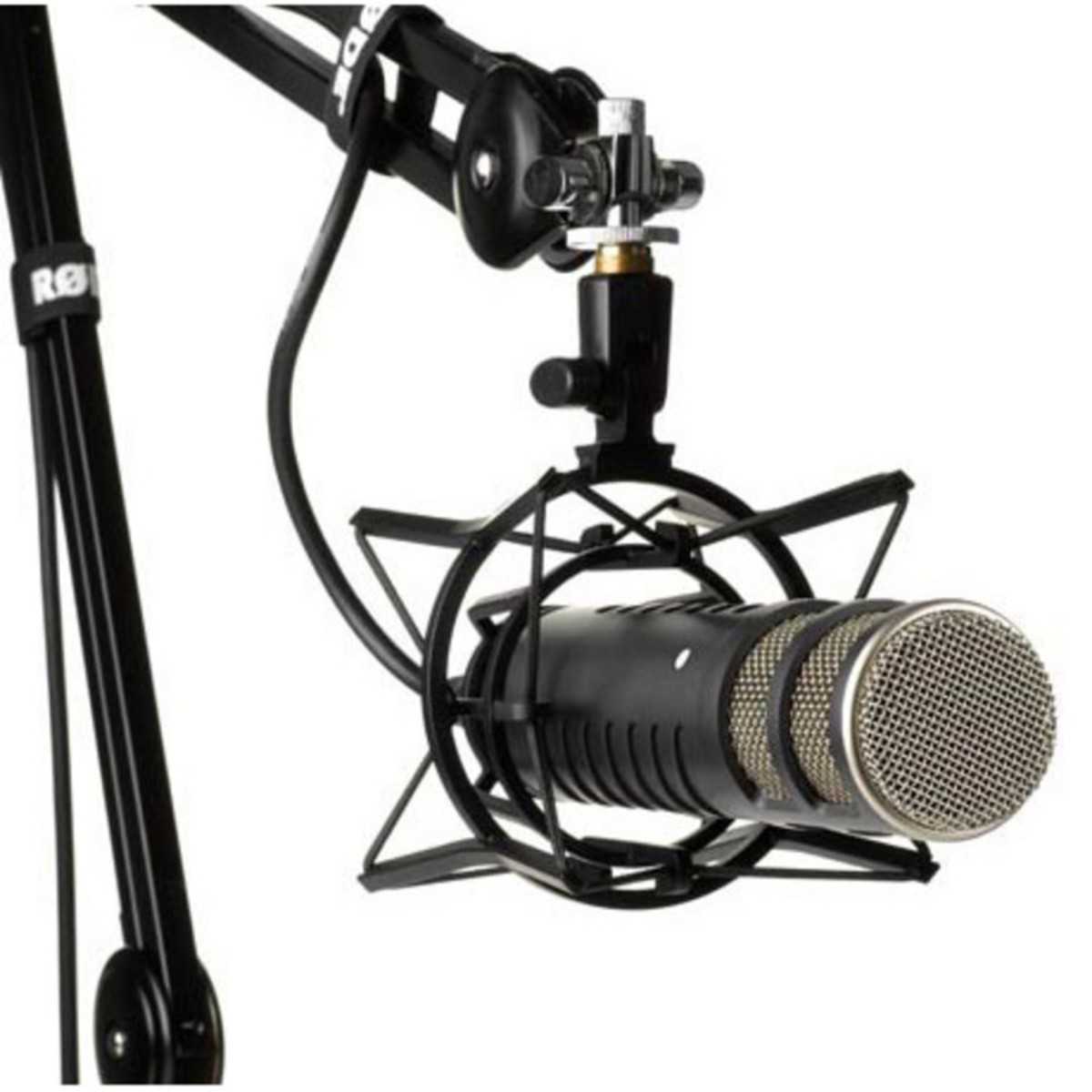
Choosing the right microphone is crucial for capturing high-quality audio. Different microphone types excel in various recording situations, and understanding their characteristics is essential for achieving professional-sounding results. This section will delve into the different microphone types, their polar patterns, and how to select the ideal microphone for your specific needs.
Microphone Types: Dynamic, Condenser, and Ribbon
Microphones come in several types, each with its unique way of converting sound waves into electrical signals. Understanding these differences will help you choose the best microphone for your recording scenario.Dynamic microphones are known for their durability and ability to handle high sound pressure levels (SPLs). They work using electromagnetic induction: a diaphragm connected to a coil of wire moves within a magnetic field when sound waves hit it, generating an electrical signal.Condenser microphones are more sensitive than dynamic microphones and require phantom power (typically 48V) to operate.
They use a capacitor: a diaphragm and a backplate form a capacitor, and sound waves cause the diaphragm to vibrate, changing the capacitance and producing an electrical signal.Ribbon microphones use a thin metal ribbon suspended in a magnetic field. Sound waves cause the ribbon to vibrate, generating an electrical signal. Ribbon mics are known for their warm, smooth sound, but are often more fragile than dynamic or condenser microphones.Here’s a breakdown of where each microphone type excels:* Dynamic Microphones: Excellent for live performances, recording loud instruments like drums and guitar amplifiers, and situations where durability is important.
Condenser Microphones
Ideal for studio recording of vocals, acoustic instruments, and capturing nuanced details.
Ribbon Microphones
Best suited for recording vocals, instruments, and achieving a vintage sound, particularly in controlled studio environments.Here is a table summarizing the pros and cons of each microphone type:
| Microphone Type | Pros | Cons |
|---|---|---|
| Dynamic | Durable, handles high SPLs, relatively inexpensive, no external power needed. | Less sensitive, may not capture fine details as well as condenser mics. |
| Condenser | Highly sensitive, captures fine details, wide frequency response. | Requires phantom power, can be more expensive, more fragile than dynamic mics. |
| Ribbon | Warm, smooth sound, excellent for vocals and instruments, vintage sound. | Fragile, requires careful handling, can be more expensive, may require a preamplifier. |
Microphone Polar Patterns
A microphone’s polar pattern describes its sensitivity to sound from different directions. Understanding these patterns is critical for proper microphone placement and minimizing unwanted noise.The most common polar patterns are:* Cardioid: This pattern is heart-shaped, picking up sound primarily from the front and rejecting sound from the sides and rear. It is excellent for isolating a single sound source, such as a vocalist, and reducing background noise.
Omnidirectional
This pattern picks up sound equally from all directions. It is useful for capturing ambient sound or recording multiple sound sources simultaneously.
Bidirectional (Figure-8)
This pattern picks up sound from the front and rear of the microphone while rejecting sound from the sides. It is often used for interviews (with one person on each side of the mic) or for recording instruments in a stereo configuration.
Choosing the Right Microphone for Recording Scenarios
Selecting the appropriate microphone for a specific recording scenario involves considering the sound source, the recording environment, and the desired sound characteristics.For vocals, a condenser microphone is often preferred for its sensitivity and ability to capture vocal nuances. A cardioid polar pattern helps to isolate the vocals and reduce background noise. A popular example is the Shure SM7B, a dynamic microphone often used for podcasting and vocals.For instruments, the choice of microphone depends on the instrument and the desired sound.
Dynamic microphones are well-suited for loud instruments like drums and guitar amplifiers, while condenser microphones are often used for acoustic instruments like guitars and pianos.For podcasts, a dynamic microphone is a popular choice due to its durability and ability to reject background noise. A cardioid polar pattern is ideal for focusing on the speaker’s voice. The Rode Procaster is a good example.
Proper Microphone Placement Techniques

Mastering microphone placement is crucial for capturing high-quality audio. The position of your microphone significantly impacts the sound you record, influencing everything from the clarity of vocals to the overall balance of instruments. Proper placement minimizes unwanted noise and maximizes the desired sound source.Understanding how to position your microphone effectively is an essential skill for any audio professional. It allows you to control the sonic characteristics of your recordings and achieve the best possible results.
Impact of Microphone Distance on Sound Quality
Microphone distance dramatically affects the sound quality of your recordings. The closer the microphone is to the sound source, the more direct sound it captures, and the less room ambience is present. Conversely, moving the microphone further away incorporates more of the room’s acoustics and potentially more background noise.* Proximity Effect: Some microphones, particularly cardioid and figure-8 condenser microphones, exhibit a “proximity effect.” This means they boost the low-frequency response as the microphone gets closer to the sound source.
This can create a warmer, fuller sound for vocals or instruments.
Clarity and Detail
Close-miking, where the microphone is placed very near the sound source, generally captures more detail and clarity. However, it can also accentuate imperfections in the performance or the instrument itself.
Room Sound
Distant miking allows the room’s acoustics to influence the recording. This can be desirable for capturing a sense of space and ambience, but it also increases the risk of capturing unwanted background noise.
Dynamic Range
Close-miking can result in a recording with a higher dynamic range, meaning the difference between the quietest and loudest parts is more pronounced. Distant miking can compress the dynamic range, making the recording sound more consistent.
Optimal Microphone Placement for Vocals
Achieving excellent vocal recordings hinges on precise microphone placement. The goal is to capture the singer’s voice clearly, without excessive plosives, sibilance, or room noise.* Distance: Begin with a distance of approximately 6-12 inches (15-30 cm) from the microphone. This distance balances clarity and minimizes the proximity effect. Adjust the distance based on the singer’s vocal style and the microphone’s characteristics.
Angle
Angle the microphone slightly off-axis from the singer’s mouth. This helps reduce plosives (harsh “p” and “b” sounds) and sibilance (harsh “s” sounds). A common technique is to position the microphone slightly above or to the side of the singer’s mouth.
Pop Filter
Always use a pop filter. This crucial accessory reduces plosives and helps protect the microphone from moisture. Place the pop filter between the singer and the microphone.
Microphone Type
Use a cardioid or supercardioid microphone for vocals. These microphones reject sound from the sides and rear, reducing background noise.
Room Acoustics
Record in a room with good acoustics. Avoid rooms with excessive reflections, which can muddy the vocal sound. If necessary, use acoustic treatment to absorb sound reflections.
Techniques for Positioning Microphones for Acoustic Instruments
Capturing the natural sound of acoustic instruments requires careful microphone placement. The optimal position depends on the instrument, the desired sound, and the room’s acoustics.* Acoustic Guitar:
Position 1
Point the microphone towards the 12th fret, about 6-12 inches (15-30 cm) away. This captures a balanced sound with clarity and body.
Position 2
Place the microphone near the soundhole, but not directly in front of it. This will result in a more bass-heavy sound.
Position 3
Use two microphones: one near the soundhole and one near the 12th fret for a stereo image.
Illustration Description
An illustration shows an acoustic guitar with a microphone positioned approximately 8 inches (20 cm) from the 12th fret, angled slightly towards the soundhole. Another microphone is positioned near the bridge, slightly angled towards the strings. The image emphasizes the distance and angle of the microphones relative to the instrument.
Drums
Overhead Microphones
Position overhead microphones above the drum kit to capture the overall sound. Experiment with the height and angle to find the sweet spot.
Snare Drum
Place a microphone a few inches above the snare drum, angled towards the center of the drumhead.
Kick Drum
Position a microphone inside the kick drum, near the beater, or outside the kick drum, a few inches away from the resonant head.
Illustration Description
The illustration shows a drum kit with two overhead microphones positioned above the cymbals and drums. A microphone is positioned close to the snare drum, and another is positioned inside the kick drum, near the beater. The illustration demonstrates the typical microphone placement for a full drum kit recording.
Piano
Inside the Piano
Open the piano lid and place microphones inside, near the strings. Experiment with different positions to capture the desired sound.
Outside the Piano
Place microphones outside the piano, pointing towards the soundboard.
Stereo Recording
Use two microphones for stereo recording, placed at different points along the strings.
Illustration Description
An illustration depicts a grand piano with the lid open. Two microphones are positioned inside the piano, near the strings. One microphone is closer to the lower register, and the other is closer to the higher register, providing a stereo image. The illustration emphasizes the placement and angle of the microphones.
Strategies for Minimizing Background Noise Through Microphone Placement
Controlling background noise is essential for professional-quality recordings. Careful microphone placement can significantly reduce unwanted sounds.* Microphone Choice: Use a directional microphone, such as a cardioid or supercardioid, which rejects sound from the sides and rear.
Room Selection
Record in a quiet room. Avoid rooms with noisy appliances, air conditioning, or external sounds.
Distance from Sound Sources
Place the microphone as close as possible to the desired sound source to minimize the impact of background noise.
Acoustic Treatment
Use acoustic panels, blankets, or other sound-absorbing materials to reduce reflections and minimize background noise.
Microphone Angle
Angle the microphone away from noise sources. If a noisy air conditioner is present, angle the microphone away from it.
Comparison of Microphone Placement Methods for Stereo Recording
Stereo recording captures the spatial information of a sound source, creating a more immersive listening experience. Different microphone placement techniques offer various sonic characteristics.
| Method | Description | Benefits | Drawbacks |
|---|---|---|---|
| XY Technique | Two cardioid microphones are placed close together, with their capsules aligned and angled at 90-120 degrees relative to each other. | Simple to set up, provides a focused stereo image. | Can result in a narrower stereo image compared to other methods. |
| ORTF Technique | Two cardioid microphones are positioned with a 17 cm (6.7 inch) spacing between the capsules and angled at 110 degrees relative to each other. | Provides a natural and wide stereo image. | Requires more space than the XY technique. |
| Spaced Pair (A/B) Technique | Two microphones are placed several feet apart, facing the sound source. | Creates a very wide stereo image, captures the room’s ambience. | Can be prone to phase issues if not carefully set up, less precise imaging. |
| Mid-Side (M-S) Technique | Uses two microphones: one cardioid (Mid) facing the sound source and one figure-8 (Side) oriented perpendicular to the sound source. The figure-8 microphone captures the left and right channels. | Provides flexibility in post-production to adjust the stereo width. | Requires more advanced processing and understanding of stereo principles. |
Essential Microphone Techniques
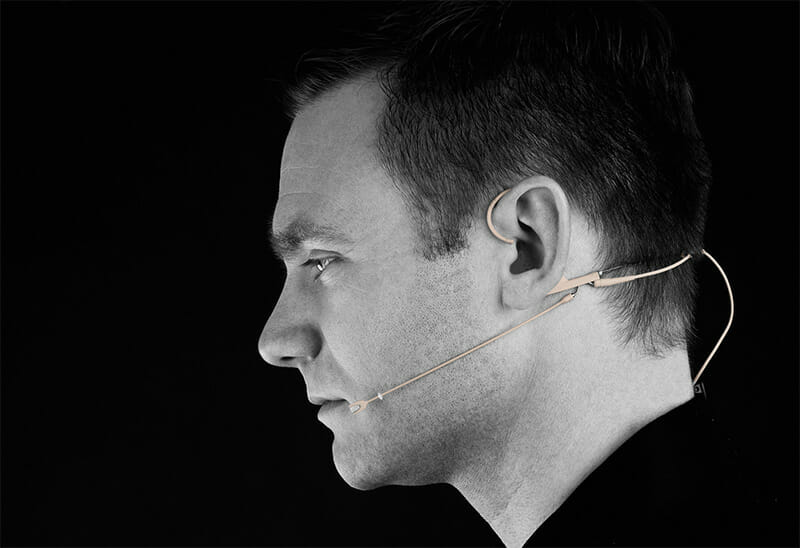
Mastering microphone techniques is crucial for capturing high-quality audio. These techniques will help you avoid common pitfalls and achieve professional-sounding recordings, whether you’re recording vocals, instruments, or anything else. By understanding and implementing these methods, you’ll significantly improve the clarity, balance, and overall quality of your audio productions.
The Proximity Effect and Creative Applications
The proximity effect is a phenomenon where the bass frequencies of a microphone increase as the sound source gets closer to the microphone. This effect is most pronounced in directional microphones, such as cardioid and figure-8 patterns. Understanding how to use the proximity effect is essential for shaping the sound of your recordings.For example, when a vocalist gets very close to a cardioid microphone, their voice will sound fuller and warmer due to the boosted bass frequencies.
However, if the vocalist gets too close, the bass can become overwhelming, resulting in a muddy or boomy sound. Conversely, moving further away from the microphone reduces the proximity effect, resulting in a thinner sound.You can use the proximity effect creatively:* Vocal Warmth: Bring the microphone closer to the vocalist to add warmth and body to their voice, especially beneficial for thin or bright vocals.
Intimate Feel
Close mic’ing creates a sense of intimacy, drawing the listener into the performance. This is common in genres like jazz and blues.
Bass Control
Use the distance from the microphone to control the bass response of instruments. For instance, you might place a microphone further away from a bass drum to reduce the boominess.
Sound Design
The proximity effect can be used to create dramatic changes in sound. Experiment with moving the microphone closer and further away during a recording to manipulate the perceived sound.
Avoiding Plosives and Sibilance
Plosives and sibilance are common audio problems that can ruin a recording. Plosives are bursts of air that occur when pronouncing “p,” “b,” and “t” sounds, while sibilance refers to the harsh “s” and “sh” sounds. Fortunately, there are several techniques to mitigate these issues.Here are techniques to avoid plosives and sibilance:* Use a Pop Filter: A pop filter is a screen placed between the microphone and the sound source.
It diffuses the air pressure from plosives, preventing them from hitting the microphone diaphragm directly.
Microphone Angle
Angle the microphone slightly off-axis from the sound source. This means the microphone isn’t directly facing the vocalist’s mouth, which can help reduce plosives.
Mic Placement
Adjust the microphone placement. If using a cardioid microphone, try placing it slightly above or below the vocalist’s mouth.
Addressing Sibilance
Sibilance is trickier, as it is frequency-related. Techniques include:
De-Essing
Using a de-esser plugin in your Digital Audio Workstation (DAW) to reduce the harshness of “s” sounds.
Microphone Choice
Some microphones are less prone to sibilance than others.
Vocal Technique
Encouraging the vocalist to soften their “s” sounds.
Achieving a Clear and Balanced Vocal Sound
Achieving a clear and balanced vocal sound involves a combination of microphone technique, vocal performance, and post-production. It’s about capturing the natural qualities of the voice while minimizing unwanted artifacts.Follow these tips for a clear and balanced vocal sound:* Proper Mic Technique: Use the correct microphone placement and distance to capture the voice effectively. Avoid excessive proximity, which can create a boomy sound.
Vocal Performance
Encourage the vocalist to project clearly and enunciate properly.
Monitor Levels
Carefully monitor the recording levels to avoid clipping or distortion. Aim for a strong signal without peaking.
EQ and Compression (Post-Production)
Use EQ to shape the vocal frequencies and compression to control the dynamic range. Be subtle with these effects.
Reverb and Effects
Use reverb and other effects sparingly to enhance the vocal performance without muddying the sound.
Pop Filters and Shock Mounts: Benefits and Applications
Pop filters and shock mounts are essential accessories for professional audio recording. They address two common issues: plosives and vibrations.The benefits of using a pop filter are:* Plosive Reduction: A pop filter significantly reduces or eliminates plosives.
Improved Clarity
By removing plosives, the overall clarity of the recording is improved.
Professional Appearance
Using a pop filter signals a level of professionalism.The benefits of using a shock mount are:* Vibration Isolation: A shock mount suspends the microphone, isolating it from vibrations that can travel through the microphone stand.
Reduced Rumble
This reduces low-frequency rumble caused by footsteps, HVAC systems, or other vibrations.
Clean Audio
The result is a cleaner, more focused recording.
Proper Microphone Handling to Avoid Unwanted Noise
Handling a microphone properly is crucial for preventing unwanted noise from contaminating your recordings. Even slight movements can create noise that is difficult to remove in post-production.Here’s how to handle a microphone correctly:* Secure the Microphone: Ensure the microphone is securely mounted in its stand or shock mount.
Avoid Touching the Microphone Body
Touching the microphone body can introduce handling noise.
Use a Mic Stand
Use a stable microphone stand to keep the microphone steady.
Cable Management
Route the microphone cable carefully to avoid it rubbing against surfaces.
Minimize Movement
Avoid unnecessary movement during recording.
Wind Protection
For outdoor recordings, use a windscreen to protect the microphone from wind noise.
Common Microphone Mistakes and How to Avoid Them
Many common mistakes can compromise the quality of a recording. Being aware of these mistakes and how to avoid them will significantly improve your audio production skills.Common microphone mistakes include:* Incorrect Mic Placement: Placing the microphone too close, too far, or at an incorrect angle.
Solution
Experiment with different microphone positions and distances.
Ignoring Room Acoustics
Recording in a room with poor acoustics, leading to reflections and echoes.
Solution
Treat the room with acoustic panels or record in a room with better acoustics.
Clipping the Signal
Recording the signal too hot, causing distortion.
Solution
Monitor the recording levels carefully and set appropriate gain levels.
Using the Wrong Microphone
Choosing a microphone that is not suitable for the sound source.
Solution
Research different microphone types and their applications.
Ignoring Cable Noise
Using a faulty or poorly shielded microphone cable.
Solution
Use high-quality, shielded microphone cables.
Failing to Use a Pop Filter
Not using a pop filter when recording vocals, resulting in plosives.
Solution
Always use a pop filter when recording vocals.
Insufficient Gain Staging
Setting the gain levels incorrectly, resulting in a weak signal or excessive noise.
Solution
Optimize gain staging to achieve a strong signal-to-noise ratio.
Not Monitoring the Audio
Not listening to the audio during recording to identify issues.
Solution
Always monitor the audio with headphones or studio monitors.
Using Microphones with Audio Interfaces and Software
Integrating a microphone with an audio interface and recording software is essential for capturing high-quality audio. This process allows for greater control over the recording process, enabling users to shape and refine their sound. Understanding how to connect, configure, and troubleshoot this setup is crucial for any aspiring audio professional.
Connecting a Microphone to an Audio Interface
Connecting a microphone to an audio interface involves several straightforward steps. Ensuring proper connections minimizes noise and maximizes signal quality.
- Choose the Correct Cable: Most microphones use XLR cables, which have three pins. Ensure your microphone has an XLR output and that your audio interface has an XLR input. Some microphones may use a 1/4″ (TS or TRS) connector, which is often used for instruments. Confirm the appropriate input on your interface.
- Connect the Microphone to the Interface: Plug one end of the XLR cable into the microphone’s output. Then, plug the other end of the XLR cable into the corresponding XLR input on your audio interface.
- Power Requirements: If your microphone is a condenser microphone, it will require phantom power (+48V). Most audio interfaces have a button to enable phantom power on individual inputs. Ensure that phantom power is enabled only for inputs connected to condenser microphones. Using phantom power with a dynamic microphone can sometimes damage it.
- Check the Connection: After connecting, double-check that the cable is securely plugged into both the microphone and the audio interface. A loose connection can introduce noise and signal loss.
Setting Gain Levels Correctly
Setting the correct gain levels is paramount to achieving a clean recording. Improper gain staging can lead to either a weak signal with excessive noise or a distorted signal due to clipping.
- Understand Gain: Gain is the input volume control on your audio interface. It determines the strength of the signal being sent from the microphone to your recording software.
- Set Input Level: Speak or sing into the microphone at the loudest level you anticipate during your recording.
- Adjust the Gain Knob: While monitoring the input level meters in your recording software or on the audio interface, slowly increase the gain.
- Avoid Clipping: The goal is to get the signal as close to 0 dBFS (decibels relative to full scale) without clipping. Clipping occurs when the signal exceeds the maximum level the interface can handle, resulting in distortion.
- Leave Headroom: Aim to keep the loudest peaks of your signal around -6 dBFS to -3 dBFS. This provides headroom, which is the space between your signal and the maximum level, allowing for unexpected peaks and preventing clipping during the recording or mixing process.
- Monitor Levels: Continuously monitor the input levels during your recording to ensure they remain within the acceptable range.
Monitoring Your Audio During Recording
Monitoring your audio in real-time is crucial for identifying potential issues and ensuring a high-quality recording. This allows you to make adjustments on the fly and prevent having to re-record later.
- Use Headphones or Studio Monitors: Connect a pair of headphones or studio monitors to your audio interface’s output. This allows you to hear the audio being recorded.
- Direct Monitoring: Most audio interfaces offer a direct monitoring feature, which allows you to hear the microphone signal directly from the interface, bypassing your computer’s processing. This provides a low-latency monitoring experience.
- Software Monitoring: Your recording software (DAW) also allows you to monitor the audio. However, this method introduces latency, which is the delay between when you speak and when you hear the audio. This can be distracting.
- Adjust Monitoring Levels: Adjust the headphone or monitor volume to a comfortable listening level.
- Listen for Problems: Pay close attention to any unwanted noises, such as hums, hisses, or distortion. Also, check for any feedback loops.
Using EQ and Compression on Microphone Signals
EQ (equalization) and compression are powerful tools for shaping the sound of your microphone signal. They can be used to correct imperfections, enhance desired characteristics, and create a polished final product.
- EQ Basics: EQ is used to adjust the frequencies of the audio signal. It can be used to cut unwanted frequencies (e.g., rumble or hiss), boost desired frequencies (e.g., vocal presence), and sculpt the overall tonal balance.
- Compression Basics: Compression reduces the dynamic range of the audio signal. It makes the loud parts quieter and the quiet parts louder, resulting in a more consistent and controlled sound. Compression can add punch and presence to vocals and instruments.
- Placement in the Signal Chain: EQ and compression are typically applied after the recording, within the DAW. However, some audio interfaces offer built-in EQ and compression that can be used during recording.
- Experimentation: Experiment with different EQ and compression settings to find what works best for your microphone signal. Start with subtle adjustments and gradually increase the intensity as needed.
- Common EQ Uses:
- Low-Cut Filter: Use a low-cut filter to remove low-frequency rumble or noise.
- Mid-Range Cut: Cut frequencies in the mid-range to reduce muddiness.
- High-Frequency Boost: Boost high frequencies to add clarity and air.
- Common Compression Uses:
- Reduce Dynamic Range: Compress the signal to make it more consistent.
- Add Punch: Use compression to add punch and impact to the signal.
Troubleshooting Common Audio Interface Problems
Encountering problems with your audio interface is common. Understanding how to troubleshoot these issues can save time and frustration.
- No Signal:
- Check Connections: Ensure all cables are securely connected.
- Phantom Power: If using a condenser microphone, ensure phantom power is enabled.
- Input Selection: Verify that the correct input is selected in your DAW.
- Driver Issues: Update or reinstall the audio interface drivers.
- Distortion:
- Gain Staging: Lower the gain on the audio interface to prevent clipping.
- Software Clipping: Check the output levels in your DAW.
- Cable Issues: Inspect cables for damage.
- Latency:
- Buffer Size: Reduce the buffer size in your DAW to minimize latency. Be aware that smaller buffer sizes can increase CPU usage.
- Direct Monitoring: Use direct monitoring on your audio interface.
- Noise:
- Grounding Issues: Ensure proper grounding of all equipment.
- Cable Quality: Use high-quality cables.
- Environmental Noise: Reduce ambient noise in the recording environment.
- Driver Problems:
- Update Drivers: Regularly update your audio interface drivers.
- Reinstall Drivers: Reinstall the drivers if problems persist.
Signal Flow Diagram: Microphone to Recording Software
The signal flow describes the path the audio signal takes from the microphone to the recording software. Understanding this flow helps to troubleshoot issues and optimize the recording process.
The following describes the signal flow diagram:
1. Microphone: The starting point, where the sound is captured.
2. XLR Cable: The cable connects the microphone to the audio interface.
3. Audio Interface Input: The microphone signal enters the audio interface through an XLR input.
4. Audio Interface (Preamp & A/D Converter):
- Preamp: Amplifies the microphone signal.
- A/D Converter (Analog-to-Digital): Converts the analog signal from the microphone into a digital signal.
5. USB Cable: The digital audio signal is transmitted from the audio interface to the computer via a USB cable.
6. Computer (DAW): The digital audio signal is received by the computer and processed within the Digital Audio Workstation (DAW).
7. DAW (EQ, Compression, Effects): The signal can be further processed within the DAW using EQ, compression, and other effects.
8. DAW (Recording Track): The processed audio is recorded to a track within the DAW.
This diagram shows the complete pathway, beginning with the initial sound and culminating in the recorded audio within the DAW.
Mastering Microphone Techniques for Different Applications
This section delves into specific microphone techniques tailored for various applications, from recording vocals and instruments to conducting interviews and performing live. Understanding these nuances is crucial for achieving professional-quality audio, regardless of the context. By mastering these techniques, you can significantly enhance the clarity, impact, and overall quality of your recordings and performances.
Recording Professional-Sounding Vocals
Achieving professional vocal recordings requires careful attention to detail, from microphone selection to room acoustics. This includes proper microphone placement, which is paramount for capturing the nuances of a vocalist’s performance.
- Microphone Selection: Choose a condenser microphone for its sensitivity and ability to capture subtle vocal details. Dynamic microphones can also be used, especially in live settings or for vocals with a naturally strong presence. For example, the Neumann U 87 Ai is a popular condenser microphone choice in professional studios, renowned for its clear and versatile sound. The Shure SM7B, a dynamic microphone, is often used for broadcast and vocal recordings due to its ability to reject background noise.
- Microphone Placement: Position the microphone at the singer’s mouth, usually slightly off-axis to minimize plosives (harsh “p” and “b” sounds). A common starting point is to place the microphone approximately 6-12 inches away from the singer. Experimenting with different angles and distances is crucial, as it influences the vocal’s tonal characteristics.
- Pop Filter and Acoustic Treatment: Use a pop filter to reduce plosives and sibilance (harsh “s” sounds). Acoustic treatment, such as absorption panels or a vocal booth, is essential to minimize room reflections and create a cleaner recording environment. This prevents unwanted echoes and resonances that can muddy the vocal track.
- Gain Staging: Set the microphone gain appropriately to achieve a strong signal without clipping. Monitor the audio levels closely and adjust the gain to prevent distortion. A good starting point is to aim for peak levels around -6dBFS in your digital audio workstation (DAW).
- Vocal Techniques: Encourage the singer to maintain a consistent distance from the microphone and to control their projection. Vocal warm-ups and practice are also crucial for consistent and professional-sounding recordings.
Illustration Description: A close-up illustration depicts a vocalist singing into a condenser microphone. The microphone is positioned slightly off-axis, with a pop filter placed between the singer and the microphone. Acoustic panels are visible in the background, absorbing sound reflections. The singer is depicted with a relaxed posture, maintaining a consistent distance from the microphone.
Capturing Clear and Powerful Instrument Sounds
Capturing instruments effectively demands understanding microphone placement, selection, and the nuances of the instrument itself. Each instrument type requires a unique approach to achieve the best results.
- Microphone Selection: The choice of microphone depends on the instrument. For acoustic guitars, condenser microphones are often preferred for their sensitivity. Dynamic microphones, like the Shure SM57, are versatile and commonly used for drums and electric guitar amplifiers.
- Microphone Placement for Acoustic Instruments: For acoustic guitar, experiment with placement near the soundhole, the 12th fret, or a combination of both. For piano, position microphones inside the instrument, near the strings, to capture the full dynamic range. For example, when miking an acoustic guitar, placing a condenser microphone about 6-12 inches away from the 12th fret can provide a balanced sound.
- Microphone Placement for Electric Instruments: Place a dynamic microphone close to the speaker cone of a guitar amplifier. For drums, use a combination of microphones for the kick drum, snare, toms, and overheads. Experiment with different angles and distances to find the optimal sound.
- Phase Issues: Be mindful of phase issues, especially when using multiple microphones on a single instrument. If the sound waves from the microphones cancel each other out, the sound will become thin or disappear. Use phase-inverting buttons or plugins to correct phase problems.
- Room Acoustics: The room’s acoustics play a significant role. Use acoustic treatment to minimize reflections and improve the clarity of the recording. A well-treated room can drastically enhance the sound quality.
Illustration Description: An illustration depicts a drummer behind a drum kit. Several microphones are positioned around the kit: one near the kick drum, one on the snare drum, and overhead microphones above the cymbals. A close-up shows a dynamic microphone placed in front of an electric guitar amplifier, near the speaker cone. The room has acoustic panels on the walls, demonstrating a controlled recording environment.
Conducting Effective Interviews with a Microphone
Effective interview recordings require thoughtful planning and the use of specific microphone techniques to ensure clear and engaging audio. This is essential for conveying information effectively and maintaining audience interest.
- Microphone Selection: Use a dynamic microphone for its ability to reject background noise, or a lavalier microphone for hands-free operation. A shotgun microphone can be useful in outdoor settings to isolate the speaker’s voice. For example, the Rode NT-USB Mini is a popular choice for interviews due to its ease of use and clear sound quality.
- Microphone Placement: Position the microphone close to the speaker’s mouth, typically 6-12 inches away. For lavalier microphones, clip the microphone to the speaker’s clothing, ensuring it is not rubbing against fabric.
- Interview Setup: Conduct interviews in a quiet environment to minimize distractions. Use a pop filter to reduce plosives and sibilance. Consider using two microphones, one for the interviewer and one for the interviewee.
- Audio Levels: Monitor audio levels closely and adjust the gain to prevent clipping. Aim for consistent levels throughout the interview. It is best practice to keep the audio levels peaking at -6dBFS to provide headroom.
- Interview Techniques: Encourage the interviewee to speak clearly and at a consistent volume. Provide clear instructions on microphone use and positioning. Practice active listening and ask follow-up questions to keep the conversation engaging.
Illustration Description: The illustration shows two people in an interview setting. One person is the interviewer, holding a handheld dynamic microphone. The interviewee is seated across from the interviewer. The background suggests a quiet, controlled environment, such as a home studio or a small office. The microphone is pointed directly at the interviewee’s mouth.
Best Practices for Using Microphones in Live Performances
Live performances introduce unique challenges, including feedback and ambient noise. Employing the right microphone techniques can make a significant difference in sound quality and performance success.
- Microphone Selection: Dynamic microphones are commonly used for vocals in live settings due to their durability and ability to reject feedback. For instruments, dynamic microphones like the Shure SM57 are versatile and reliable.
- Microphone Placement and Sound Check: Position microphones strategically on stage to capture sound effectively while minimizing feedback. Conduct a thorough sound check to adjust levels and identify potential feedback issues.
- Feedback Control: Use an equalizer to cut frequencies that cause feedback. Position monitors at an angle to avoid sound being picked up by the microphones. Use a feedback suppressor if necessary.
- Monitor Mix: Ensure that the performers can hear themselves clearly in their monitors. Adjust the monitor mix to provide a balanced sound for each performer. This is crucial for a cohesive performance.
- Stage Setup: Organize the stage setup to minimize sound bleed from other instruments. Consider using acoustic shields or baffles to isolate instruments and reduce unwanted noise.
Illustration Description: An illustration depicts a live band performing on stage. A vocalist is singing into a dynamic microphone. The stage setup includes multiple microphones for different instruments (drums, guitars, bass). Monitor speakers are positioned on the stage to allow the musicians to hear themselves. The sound engineer is at a mixing console, adjusting the audio levels.
Preparing a Microphone Setup for a Podcast or Broadcast
Creating a professional podcast or broadcast requires a well-planned microphone setup. This includes careful selection of equipment, setup, and post-production techniques.
- Microphone Selection: Choose a microphone based on the recording environment and the type of content. Condenser microphones are suitable for controlled environments, while dynamic microphones are better for less-than-ideal spaces. USB microphones offer convenience for beginners.
- Recording Environment: Record in a quiet space with minimal background noise. Use acoustic treatment to minimize reflections and improve sound quality. Consider using a dedicated podcasting studio or a sound-treated room.
- Microphone Placement: Position the microphone close to the speaker’s mouth, typically 4-6 inches away. Use a pop filter to reduce plosives and a shock mount to minimize vibrations.
- Software and Audio Interface: Use a digital audio workstation (DAW) to record and edit the podcast. An audio interface can provide higher quality audio and more input options.
- Post-Production: Edit the audio to remove unwanted noise, adjust levels, and apply equalization and compression. Use noise reduction techniques to clean up the audio.
Illustration Description: The illustration shows a person recording a podcast in a home studio. The setup includes a condenser microphone mounted on a boom arm, a pop filter, and headphones. The background shows acoustic panels on the walls, indicating a sound-treated recording environment. The person is sitting at a desk with a computer and audio interface.
Troubleshooting Common Microphone Issues
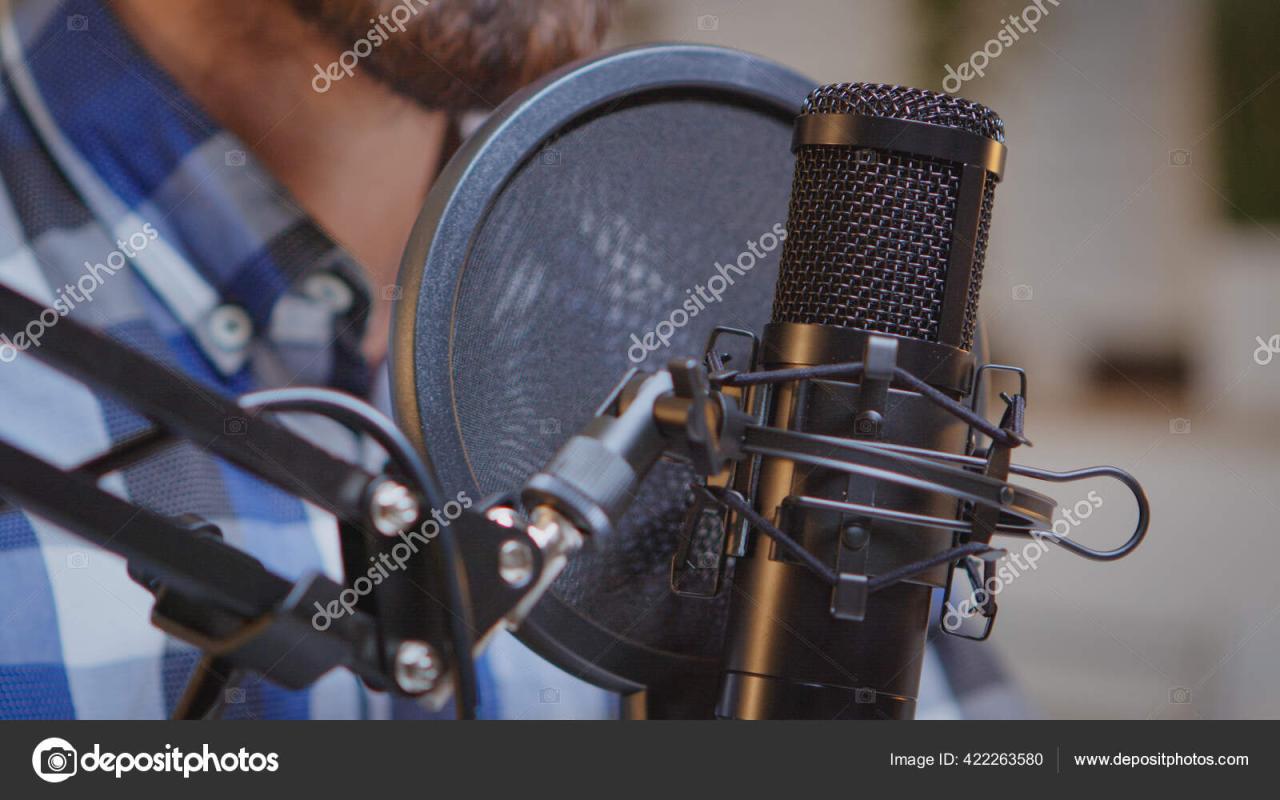
Even with the best equipment and techniques, you may encounter problems with your microphone recordings. This section will guide you through common issues, providing practical solutions to ensure your audio sounds professional. We’ll cover static, feedback, low levels, background noise, and connectivity problems.
Identifying Causes of Static or Hissing Sounds
Static and hissing are unwanted noises that can ruin a recording. Understanding their causes is the first step in eliminating them.
- Electrical Interference: Radio Frequency Interference (RFI) from nearby devices like cell phones, Wi-Fi routers, or fluorescent lights can introduce static. This interference often manifests as buzzing or crackling sounds.
- Poor Cable Quality or Connections: Damaged or low-quality microphone cables (XLR or USB) can pick up interference or have poor shielding, leading to noise. Loose connections at the microphone or audio interface can also cause static.
- Gain Staging Issues: Setting the input gain on your audio interface or mixer too high amplifies both the desired audio and any existing noise. This results in noticeable hiss.
- Ground Loops: Ground loops occur when multiple pieces of equipment are connected to different electrical grounds, creating a loop that allows unwanted current to flow and generate hum or buzz.
- Faulty Microphone: Internal components within the microphone itself can malfunction, producing static or hiss. This is more common with older or damaged microphones.
Diagnosing and Fixing Microphone Feedback
Feedback is a high-pitched squealing sound caused by a loop between the microphone and the speakers. It’s a common problem, but it can be resolved.
- Understanding the Feedback Loop: Feedback happens when the sound from the speakers is picked up by the microphone, amplified, and then played back through the speakers again. This creates a cycle of increasing volume and the characteristic squeal.
- Reducing Feedback:
- Reduce Microphone Gain: Lower the input gain on your microphone or audio interface.
- Reduce Speaker Volume: Lower the volume of your speakers.
- Reposition the Microphone and Speakers: Place the microphone behind the speakers, or at least away from them. Avoid pointing the microphone directly at the speakers.
- Use Directional Microphones: Cardioid or hypercardioid microphones are less sensitive to sounds from the sides and rear, reducing the likelihood of feedback.
- Use Feedback Suppressors: Consider using a dedicated feedback suppressor or a plugin in your Digital Audio Workstation (DAW). These tools automatically detect and notch out frequencies that cause feedback.
Solutions for Dealing with Low Audio Levels
Low audio levels result in recordings that are quiet and difficult to hear, requiring significant amplification, which can introduce noise.
- Insufficient Gain: Ensure you’ve increased the input gain on your audio interface or mixer. Monitor the levels using the meters to ensure the signal is strong without clipping (distortion).
- Microphone Placement: The distance between the microphone and the sound source greatly impacts the audio level. Move the microphone closer to the sound source.
- Weak Sound Source: If the sound source itself is quiet, you may need to increase its volume or move it closer to the microphone.
- Incorrect Microphone Type: Using a microphone designed for a different application can result in low audio levels. For example, using a dynamic microphone on a quiet source might result in low levels compared to a condenser microphone.
- Cable Issues: A faulty or poorly connected cable can reduce the signal strength. Check the cable and connections.
- Software Settings: In your recording software, verify that the input channel is selected and that the input volume is set appropriately.
Strategies for Eliminating Unwanted Background Noise
Background noise can significantly detract from the quality of a recording. Addressing it is crucial for professional-sounding audio.
- Identify the Source: Determine where the noise is coming from. Common culprits include air conditioning, fans, traffic, computers, and external conversations.
- Control the Environment:
- Close Doors and Windows: This helps to block external sounds.
- Turn off Unnecessary Equipment: Disable noisy devices like air conditioners, computers, or fans during recording.
- Use Acoustic Treatment: Soundproofing or using acoustic panels in your recording space can absorb sound reflections and reduce overall noise levels.
- Microphone Selection: Use a directional microphone, such as a cardioid or hypercardioid, to minimize background noise pickup.
- Noise Reduction Software: Use noise reduction plugins or software in your DAW to reduce or remove unwanted noise after recording. Be careful not to over-process, as this can introduce artifacts.
- Record During Quiet Times: Choose times when background noise is naturally reduced, such as late at night or early in the morning.
Detailing How to Troubleshoot Issues with Microphone Connectivity
Connectivity problems can prevent your microphone from working altogether. Proper troubleshooting ensures your microphone is correctly connected and recognized.
- Cable Connections:
- XLR Cables: Ensure the XLR cable is securely plugged into both the microphone and the audio interface or mixer.
- USB Cables: Verify the USB cable is securely connected to both the microphone and the computer. Try a different USB port.
- Power:
- Phantom Power: If using a condenser microphone, ensure that phantom power (+48V) is enabled on your audio interface or mixer.
- USB Power: Some USB microphones require sufficient power from the USB port. If the microphone is not being recognized, try a different USB port or a powered USB hub.
- Driver Issues:
- Install Drivers: Make sure you have installed the necessary drivers for your audio interface or USB microphone.
- Update Drivers: Check for updated drivers from the manufacturer’s website.
- Software Settings:
- Input Selection: In your recording software, select the correct input device and input channel for your microphone.
- Monitoring: Enable monitoring to hear the microphone input during recording.
- Test the Microphone: Try the microphone with a different cable, audio interface, or computer to isolate the problem.
Organizing a Troubleshooting Guide for Common Microphone Problems
This guide provides a quick reference for common microphone problems and their solutions.
| Problem | Possible Causes | Solutions |
|---|---|---|
| No Sound |
|
|
| Low Volume |
|
|
| Static/Hiss |
|
|
| Feedback |
|
|
| Background Noise |
|
|
Final Review
From understanding microphone types to troubleshooting common issues, “How to Use a Microphone Like a Professional” has provided a thorough exploration of the skills needed to elevate your audio recordings. You’ve learned how to choose the right microphone, position it perfectly, and utilize essential techniques to achieve professional-sounding results. Remember, practice is key. By implementing these techniques, you’ll be well on your way to capturing audio that not only sounds great but also communicates your message effectively, whether you’re recording at home, in a studio, or on stage.