Want to elevate your presentations from ordinary to extraordinary? This guide, “How to Incorporate Video and Audio into Your Talk Seamlessly,” dives into the art and science of integrating multimedia elements into your talks. We’ll explore everything from planning and preparation to technical troubleshooting, ensuring your message not only resonates but also captivates your audience.
Imagine effortlessly weaving compelling video clips, dynamic audio cues, and impactful visual aids into your presentations. This isn’t just about adding bells and whistles; it’s about enhancing your message, boosting audience engagement, and creating a truly memorable experience. We will equip you with the knowledge and techniques to make it happen.
Planning and Preparation for Audio/Video Integration
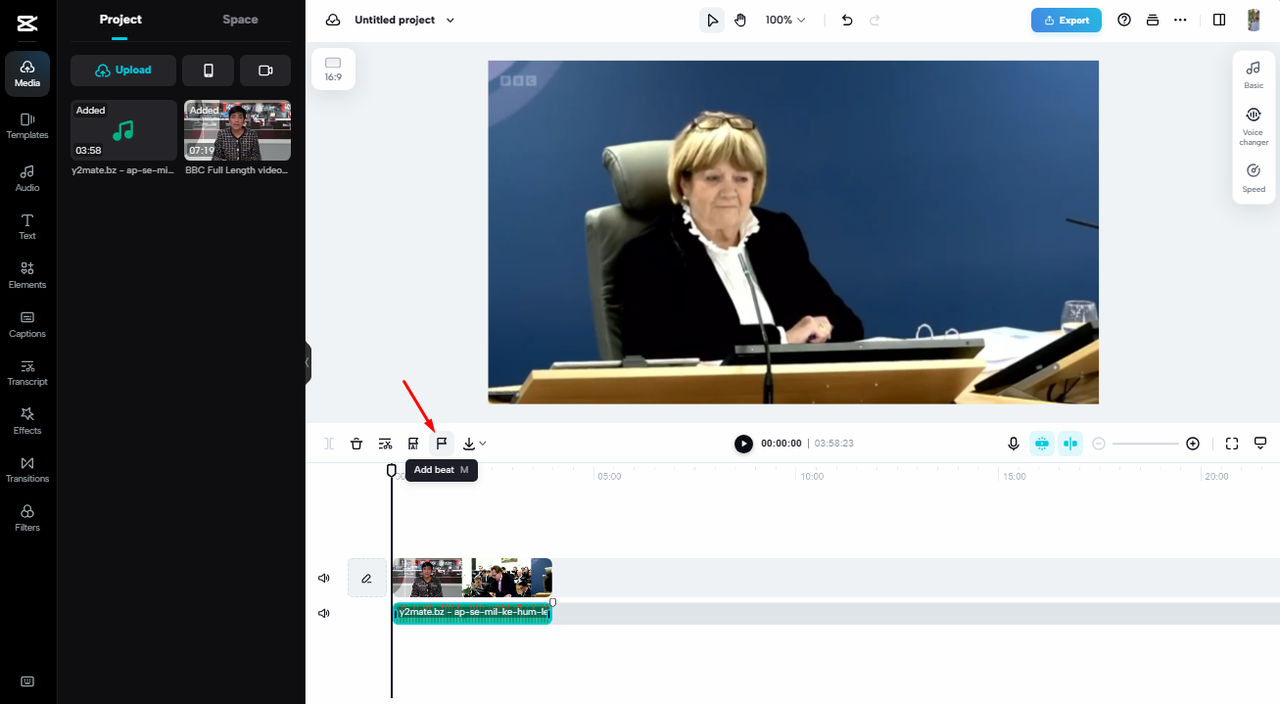
Integrating audio and video into your presentation enhances engagement and comprehension. Proper planning and preparation are crucial to avoid technical glitches that can disrupt your flow and detract from your message. This section Artikels the essential pre-talk considerations, equipment checklists, testing procedures, and presentation format considerations for seamless audio and video integration.
Essential Pre-Talk Considerations for Audio and Video Integration
Before incorporating audio and video, several technical aspects need careful consideration. These considerations ensure compatibility, optimal performance, and a smooth presentation experience.
- Compatibility: Verify the compatibility of your presentation software (e.g., PowerPoint, Keynote, Google Slides) with the audio and video file formats you intend to use. Common formats like MP4, MOV, MP3, and WAV are generally supported, but it’s wise to test your specific files beforehand.
- File Size and Optimization: Large video files can cause lag during playback. Optimize video files for presentation use by compressing them to reduce file size without significant quality loss. Consider using video editing software to trim unnecessary footage and adjust resolution settings. A common practice is to aim for a resolution that balances quality with file size, often 720p or 1080p.
- Internet Connectivity (for Streaming or Online Content): If your presentation relies on streaming video or accessing online content, ensure a stable and reliable internet connection. Test the connection speed and bandwidth beforehand to confirm that the video streams smoothly. Consider having a backup plan, such as pre-downloading videos or having a mobile hotspot available.
- Software Updates: Ensure that your presentation software, operating system, and any media players are up-to-date. Updates often include bug fixes and performance improvements that can prevent technical issues during your presentation.
- Venue and Environment: Assess the presentation venue’s audio-visual capabilities. Consider the room’s acoustics, lighting, and screen size. If using the venue’s equipment, confirm its compatibility with your presentation files and devices. Conduct a site visit if possible.
Equipment Checklist for High-Quality Audio and Video Capture
To achieve high-quality audio and video capture, you’ll need specific equipment. This checklist provides a comprehensive list of essential items.
- Microphone:
- Lavalier Microphone: A small microphone that clips onto clothing, ideal for clear audio capture during movement.
- USB Microphone: A microphone that connects directly to your computer, offering good audio quality.
- Shotgun Microphone: A directional microphone that focuses on sound from a specific direction, reducing background noise.
- Camera:
- Webcam: Built-in or external webcam for basic video capture.
- DSLR or Mirrorless Camera: Offers superior video quality and control over settings like aperture, ISO, and focus.
- Tripod or Stand: Provides stability for your camera, preventing shaky video.
- Lighting:
- Ring Light: Provides even illumination and eliminates shadows.
- Softbox Lights: Diffused lights that create soft, flattering lighting.
- Audio Interface (if using an external microphone): Connects your microphone to your computer and provides preamplification for improved audio quality.
- Video Capture Card (if using an external camera): Allows you to connect an external camera to your computer for video recording and streaming.
- Headphones: Essential for monitoring audio during recording and playback.
- Computer: A laptop or desktop computer with sufficient processing power and storage space.
- Presentation Software: PowerPoint, Keynote, Google Slides, or other presentation software.
- Video Editing Software: Software for editing and optimizing your videos.
- Cables and Adapters: Ensure you have all necessary cables (e.g., HDMI, USB) and adapters.
- Power Supply: Ensure your equipment has a reliable power source.
Step-by-Step Procedure for Testing Audio and Video Equipment
Thoroughly testing your audio and video equipment before your presentation is critical to ensure a smooth and professional delivery. Here’s a step-by-step procedure, including common troubleshooting steps.
- Microphone Test:
- Connect your microphone to your computer or audio interface.
- Open your presentation software or a recording program.
- Record a short audio clip, speaking clearly and at a normal volume.
- Play back the audio clip to check for clarity, background noise, and any distortion.
- Troubleshooting:
- If the audio is too quiet, increase the microphone input level in your computer’s sound settings.
- If there is background noise, try adjusting the microphone placement, using a noise gate, or using a more directional microphone.
- If the audio is distorted, reduce the microphone input level.
- Camera Test:
- Connect your camera to your computer.
- Open your presentation software or a video recording program.
- Check the video feed to ensure the image is clear, well-lit, and in focus.
- Record a short video clip.
- Play back the video clip to assess the video quality and audio synchronization.
- Troubleshooting:
- If the video is blurry, adjust the camera’s focus.
- If the lighting is poor, adjust the lighting or use additional lighting.
- If the video is choppy, reduce the video resolution or close unnecessary applications.
- Audio and Video Synchronization Test:
- Record a video clip where you speak and move simultaneously.
- Play back the clip and check if the audio and video are synchronized.
- Troubleshooting:
- If the audio and video are out of sync, adjust the audio delay settings in your recording software.
- Presentation Software Integration Test:
- Import your audio and video files into your presentation software.
- Test the playback of your audio and video files within the presentation.
- Ensure the audio and video play smoothly and at the correct times.
- Troubleshooting:
- If the video does not play, check the file format compatibility.
- If the audio is too loud or too quiet, adjust the volume settings.
- If the playback is choppy, optimize the video file or reduce the resolution.
- Internet Connection Test (if applicable):
- If you are streaming video or accessing online content, test your internet connection speed and stability.
- Ensure that the video streams smoothly without buffering.
- Troubleshooting:
- If the internet connection is slow, try closing unnecessary applications or using a wired connection.
- Consider pre-downloading videos if the internet connection is unreliable.
Presentation Formats and Suitability for Audio/Video Integration
Different presentation formats offer varying levels of flexibility for incorporating audio and video elements. Choosing the right format depends on your content, audience, and the desired level of multimedia integration.
| Presentation Format | Description | Suitability for Audio Integration | Suitability for Video Integration |
|---|---|---|---|
| Standard Slideshow (e.g., PowerPoint, Keynote) | The most common format, using slides with text, images, and basic animations. | High: Easy to embed audio clips, background music, and voiceovers. | Medium: Can embed video clips, but complex video integration may require optimization. |
| Interactive Presentation (e.g., Prezi, Mentimeter) | Non-linear presentations with zoom effects, branching paths, and audience interaction features. | Medium: Audio can be integrated but may require careful planning to avoid disrupting the flow. | Medium: Video can be embedded, and interactivity can be used to trigger video playback. |
| Live Demo or Tutorial | Focuses on demonstrating a process, product, or skill in real-time. | High: Essential for providing clear explanations and instructions during the demo. | High: Crucial for showing the product or process in action. Often relies on screen recording or live camera feeds. An example could be a software tutorial where the presenter’s voice guides the viewer through the steps, complemented by screen recordings of the software interface and occasional webcam footage of the presenter for added engagement. |
| Video Presentation (e.g., Webinar, Recorded Lecture) | The primary content is video, often incorporating slides, graphics, and screen recordings. | High: Audio is central to the presentation, including narration, music, and sound effects. | High: Video is the core medium, allowing for complex video editing, transitions, and visual effects. A typical use case is a recorded lecture where the professor’s video is combined with slides, animations, and occasional video clips to illustrate complex concepts, creating a more engaging learning experience. |
Choosing the Right Audio and Video Content
Selecting the perfect audio and video elements is crucial for transforming a good presentation into a memorable one. Carefully chosen content can dramatically enhance your message, captivate your audience, and leave a lasting impact. This section focuses on the key considerations for choosing the right audio and video content.
Criteria for Selecting Appropriate Audio and Video Clips
The selection of audio and video clips should always serve the purpose of supporting and enriching your core message. It is essential to avoid using media simply for the sake of it. The criteria below guide the selection process.* Relevance: The content must directly relate to your talk’s subject matter. Ensure that the video or audio clip reinforces the points you are making.
Clarity
Choose high-quality audio and video. Avoid blurry videos or distorted audio, as these can distract the audience.
Conciseness
Keep clips short and to the point. Avoid overwhelming the audience with lengthy segments. A few seconds of impactful content often works better than minutes of less engaging material.
Emotional Impact
Select media that evokes the desired emotions. A powerful video can create empathy, while a humorous audio clip can lighten the mood.
Timing
Integrate media seamlessly into your presentation. Ensure that the audio or video begins and ends at the appropriate times, aligning with your spoken words.
Accessibility
Consider your audience’s needs. Ensure that the content is accessible to all, including those with visual or auditory impairments. Provide captions for videos and consider audio descriptions.
Effective Video Introductions and Conclusions
The beginning and end of your presentation are prime opportunities to make a strong impression. Strategic use of video can significantly enhance these crucial moments.* Video Introductions:
Example 1
Start with a short, impactful video clip showcasing a problem related to your topic. For example, if your talk is about climate change, you could begin with a brief video of rising sea levels. This grabs attention immediately and sets the stage for your presentation.
Example 2
Use a short, professionally produced video introduction that clearly states the talk’s title and speaker, accompanied by compelling visuals. This can be a short animated sequence, a quick montage, or a short clip of the speaker introducing themselves.
Video Conclusions
Example 1
End with a call to action, using a video that reinforces your key message and encourages the audience to take specific steps. For example, if your talk is about sustainable living, the conclusion could be a video showing people taking action to reduce their carbon footprint.
Example 2
Conclude with a video that offers a powerful visual summary of your presentation, such as a brief animation that restates the main points or a montage of key images and concepts.
Importance of Selecting Royalty-Free or Properly Licensed Media
Using media without proper licensing can lead to legal issues and financial penalties. It is imperative to use only royalty-free or properly licensed content.* Royalty-Free Media: Royalty-free media can be used without paying ongoing royalties. It often requires a one-time payment for the license. Websites like Pexels, Pixabay, and Unsplash offer free stock videos and images.
Licensed Media
Licensed media requires you to obtain a license that specifies the terms of use. Always review the license terms to ensure that the content can be used for your presentation.
Consequences of Infringement
Using copyrighted material without permission can result in legal action, including fines and lawsuits. It can also damage your reputation and credibility.
Different Types of Audio Elements and Their Appropriate Uses
Audio elements can significantly enhance the impact of your presentation, providing emotional depth and clarity. The effective integration of different audio elements is critical.* Music:
Use
To set the mood, create emotional resonance, or provide background ambiance.
Examples
Use uplifting music during an introduction to create a positive atmosphere or somber music during a segment about a serious issue.
Sound Effects
Use
To punctuate points, add realism, or create emphasis.
Examples
Use a “whoosh” sound effect to transition between slides, or a sound of a cash register to emphasize a point about revenue.
Voiceovers
Use
To provide narration, explain complex concepts, or guide the audience through visuals.
Examples
Use a voiceover to describe a product demonstration, or to provide context for a graph or chart.
Ambient Sounds
Use
To create a sense of place or atmosphere.
Examples
Use the sound of a busy street to represent an urban environment or the sound of a rainforest to depict a natural setting.
Seamless Integration Techniques

Integrating video and audio into your presentations can significantly enhance audience engagement and understanding. However, the key to success lies in seamless integration. A poorly executed transition or a technical glitch can disrupt the flow and detract from your message. This section will explore techniques to ensure a smooth and professional presentation, focusing on transitions, troubleshooting, and precise timing.
Methods for Smooth Transitions
Creating smooth transitions is crucial for maintaining audience engagement. Abrupt shifts between you and your media can be jarring.* Use Visual Cues: Prepare your audience for a video or audio clip by using visual cues. A simple slide with a title like “Now, let’s hear from…” or “As you can see in this video…” provides a clear signal.
Pre-Roll and Post-Roll
Include a brief “pre-roll” before your video, such as a title card or a short animation, to set the context. Similarly, a “post-roll” after the clip, like a summary slide or a transition back to your main point, helps bring the audience back.
Audio Fades
Implement audio fades, both in and out, for your audio clips. This prevents abrupt starts and stops that can be distracting. Use the audio editing features in your presentation software or a dedicated audio editor.
Speaker Introduction
Introduce the video or audio clip by providing a brief context and explaining its relevance to your presentation. This helps the audience understand the purpose of the clip and its connection to your overall message.
Natural Pauses
Incorporate natural pauses before and after playing a video or audio clip. This allows the audience to mentally prepare for the change and helps you regain control of the presentation.
Use of Consistent Branding
Maintain consistent branding elements throughout your presentation, including the video or audio clips. This creates a cohesive visual experience. For example, use the same font, color scheme, and logo in your presentation slides and in your video.
Common Technical Issues and Prevention
Technical difficulties can derail even the best-prepared presentations. Proactive measures can minimize disruptions.* Test Your Equipment: Always test your equipment thoroughly before your presentation. This includes your computer, projector, speakers, microphone, and internet connection (if needed). Conduct a full run-through, including playing the video and audio clips, to identify any potential issues.
Backup Plans
Have backup plans in place. If you are using video, have a backup copy saved locally on your computer and on a USB drive. If you are relying on the internet for streaming, have a backup plan in case the connection fails.
Optimize Media Files
Optimize your video and audio files for your presentation software. Large files can cause delays or playback issues. Consider compressing your files or converting them to a format optimized for your software.
Check Compatibility
Ensure that your presentation software and hardware are compatible with the video and audio formats you are using. Some software may not support certain codecs.
Silence Notifications
Turn off all notifications on your computer during your presentation. This includes email, social media, and system alerts. These notifications can interrupt your presentation and distract your audience.
Manage Audio Levels
Ensure your audio levels are appropriate. Test the audio levels before your presentation to ensure they are neither too loud nor too quiet. Consider using a sound level meter.
Update Software and Drivers
Keep your presentation software, operating system, and drivers up to date. Outdated software or drivers can cause compatibility issues.
Best Practices for Timing Audio and Video Elements
Precise timing is critical for aligning your spoken content with your media. Mismatched timing can be confusing and detract from your message.* Scripting and Storyboarding: Create a script and storyboard that includes the exact timing of your audio and video clips. This allows you to plan your presentation and ensure that the media aligns with your spoken content.
Practice and Rehearse
Practice your presentation multiple times, including the timing of your audio and video clips. This will help you become comfortable with the transitions and ensure that everything flows smoothly.
Cue Cards
Use cue cards or a teleprompter to keep track of your timing and ensure that you stay on track. These tools can help you remember when to start and stop your audio and video clips.
Use Countdown Timers
Use a countdown timer on your screen to help you manage your time and stay on schedule. This is especially useful when presenting complex information or when using multiple audio and video clips.
Edit and Refine
Review your presentation and edit your audio and video clips to ensure that they are aligned with your spoken content. Adjust the timing of the clips or your spoken content as needed.
Anticipate and Adjust
Be prepared to adjust your timing on the fly if needed. Technical difficulties or unexpected delays can occur. Be flexible and adapt your presentation as needed.
Step-by-Step Guide: Embedding Video in Presentation Slides
Here’s a step-by-step guide to embedding a video in a presentation slide using common presentation software.* Step 1: Choose Your Software: Select your presentation software, such as Microsoft PowerPoint, Google Slides, or Apple Keynote. The steps may vary slightly depending on the software, but the general process is similar.
Step 2
Open Your Presentation: Open the presentation where you want to embed the video.
Step 3
Select the Slide: Navigate to the slide where you want to add the video.
Step 4
Insert the Video: Locate the “Insert” tab or a similar option in the software’s menu. Look for an option like “Video” or “Media.”
Step 5
Choose Your Video Source: You will typically have two options:
Online Video
Select this option if you want to embed a video from a platform like YouTube or Vimeo. You will usually be prompted to paste the video’s URL.
Video from File
Select this option if you have the video saved on your computer. Browse your files and select the video file.
Step 6
Position and Resize the Video: Once the video is embedded, you can move it around the slide and resize it to fit your desired layout. Use the handles on the video frame to adjust its size.
Step 7
Adjust Playback Settings (Optional): Most software allows you to customize the playback settings. You might be able to choose:
Start Automatically
The video begins playing when the slide appears.
Start on Click
The video starts playing when you click on it.
Loop
The video repeats continuously.
Volume
Adjust the video’s volume.
Trim
Trim the beginning or end of the video.
Step 8
Test Your Presentation: Before your presentation, test the slide with the embedded video to ensure it plays correctly. Verify the timing, volume, and overall appearance.
Enhancing Audience Engagement
Incorporating audio and video effectively transforms a presentation from a passive experience to an active, immersive one. This section explores strategies to captivate your audience, drawing them deeper into your message and fostering a more memorable presentation. We’ll delve into the power of different video types and the subtle yet impactful role of audio in reinforcing key concepts.
Creating an Immersive Experience
To create a truly immersive experience, it’s crucial to understand how audio and video work together to engage different senses. When these elements are skillfully integrated, they can significantly increase audience retention and interest.
Types of Video Content and Their Effectiveness
The choice of video content significantly impacts audience engagement. Different video formats serve different purposes and elicit varied responses. Selecting the right type depends on the specific message and desired outcome.
- Animations: Animations excel at simplifying complex concepts, processes, or data visualizations. They can capture attention quickly and provide a visually engaging way to convey information that might be challenging to explain through static visuals or text alone. For instance, a complex scientific process is more understandable when presented through an animated model.
- Interviews: Interviews add a human element, making the content more relatable and trustworthy. Hearing from experts or individuals with firsthand experience can provide credibility and allow the audience to connect with the subject matter on a personal level. Including a well-edited interview can add a layer of authenticity to the presentation.
- Demonstrations: Demonstrations are excellent for showing how something works or for illustrating a skill. They allow the audience to see a process in action, enhancing understanding and retention. A demonstration can be particularly useful for showing how to use a product or service.
Captivating Visual Element: Dynamic Graphic of Audience Attention
Imagine a dynamic graphic displayed on the screen. The graphic initially depicts a flat, low-level line representing audience attention. As the presentation progresses, and as video and audio elements are incorporated, the line dramatically rises, transforming into a vibrant, undulating wave. The wave’s peaks and valleys correspond to the integration of video clips, sound effects, and music, illustrating moments of heightened engagement.
Colors shift and pulse in sync with the audio, further amplifying the visual impact. The overall effect is a clear, immediate visualization of how strategic audio and video use can directly impact and elevate audience attention levels throughout the presentation. This visual demonstrates the effectiveness of dynamic elements on audience focus.
Using Audio to Emphasize Key Points
Audio is not merely background noise; it’s a powerful tool for emphasizing key points and guiding the audience’s attention. Strategic use of audio can make a significant difference in how your message is received.
“Sound effects can be used to punctuate critical information, such as the ‘ding’ sound to highlight a statistic or the ‘whoosh’ sound to transition between ideas.”
“Music can create an emotional connection. Uplifting music can make a presentation feel more exciting and positive, while suspenseful music can build anticipation.”
“Vocal emphasis is also important. Change your tone and pace to emphasize key words or phrases, making them stand out from the rest of the text.”
Technical Considerations and Software Tools
Integrating video and audio seamlessly into your presentation involves more than just selecting the right content; it also requires understanding the technical aspects of file formats, optimization, and the tools available to you. This section provides a practical guide to navigate these considerations, ensuring your presentation runs smoothly and engages your audience effectively.
Common Video and Audio File Formats and Compatibility
Understanding file formats is crucial for successful integration. Compatibility issues can lead to playback errors or poor-quality visuals and audio.Here’s a breakdown of common video and audio file formats and their compatibility with popular presentation software:
- Video Formats:
- MP4 (MPEG-4): This is the most widely compatible video format. It offers good compression, balancing file size and quality. Most presentation software, including PowerPoint, Keynote, and Google Slides, supports MP4 files.
- MOV (QuickTime): Developed by Apple, MOV is another popular format, especially on macOS. It can store high-quality video and audio. While generally compatible, you might need to install QuickTime codecs on Windows to play MOV files.
- WMV (Windows Media Video): Developed by Microsoft, WMV is a common format, particularly on Windows systems. It’s supported by most presentation software.
- AVI (Audio Video Interleave): AVI is an older format that can be less efficient than MP4 or MOV. It is widely supported, but file sizes can be larger.
- Audio Formats:
- MP3 (MPEG-1 Audio Layer III): This is the most universally compatible audio format, known for its good compression and widespread support. It’s suitable for most presentations.
- WAV (Waveform Audio File Format): WAV files are uncompressed, resulting in high audio quality but larger file sizes. They are ideal when audio fidelity is paramount.
- M4A (MPEG-4 Audio): This format, often used by Apple, provides good quality and is well-supported.
- AAC (Advanced Audio Coding): AAC is another compressed audio format that offers excellent quality and is supported by most presentation software.
Note: Always test your files in your presentation software before the actual presentation to ensure compatibility and smooth playback.
Recommended Settings for Optimizing Video and Audio Files
Optimizing your video and audio files is essential for maintaining quality while minimizing file size and ensuring smooth playback during your presentation. Here’s a guide to recommended settings:
- Video Optimization:
- Resolution: Choose a resolution appropriate for your presentation display. For most presentations, 1920×1080 (1080p) is a good balance between quality and file size. For smaller screens, 1280×720 (720p) may suffice.
- Codec: Use the H.264 codec for MP4 files. This codec provides excellent compression without significant quality loss.
- Bitrate: A higher bitrate generally means better quality, but also larger file sizes. For 1080p video, a bitrate between 5-10 Mbps is usually sufficient. For 720p, 2-5 Mbps is adequate.
- Frame Rate: A frame rate of 24 or 30 frames per second (fps) is standard for most videos and will work well for presentations.
- File Size: Keep file sizes as small as possible without sacrificing quality. This reduces the risk of playback issues. Compress videos as much as possible without compromising quality.
- Audio Optimization:
- Codec: Use the AAC or MP3 codec for audio. Both provide good quality and compression.
- Bitrate: For spoken word, a bitrate of 128 kbps is usually sufficient. For music, consider 192 kbps or higher for better quality.
- Sample Rate: A sample rate of 44.1 kHz is standard for most audio and will provide good quality.
- File Size: Similar to video, aim for smaller file sizes to improve loading times and reduce the chance of playback issues.
Important Considerations: The specific settings may need to be adjusted based on the nature of the video/audio content and the intended display environment. Always preview the optimized files to ensure the quality is acceptable.
Software Tools for Editing Video and Audio
Several software tools can help you edit and optimize your video and audio files. These tools range from free, basic options to professional-grade software.
- Video Editing Software:
- OpenShot: A free, open-source video editor suitable for basic editing tasks, such as trimming, merging clips, and adding transitions.
- DaVinci Resolve: A powerful, free video editor offering advanced features like color correction and audio mixing, suitable for more complex projects.
- Adobe Premiere Pro: A professional-grade video editing software that offers advanced features, including multi-camera editing, motion graphics, and extensive effects.
- Final Cut Pro: A professional video editing software developed by Apple, designed for macOS, offering advanced features and a user-friendly interface.
- Audio Editing Software:
- Audacity: A free, open-source audio editor that is excellent for basic audio editing tasks like trimming, noise reduction, and adjusting levels.
- Adobe Audition: A professional-grade audio editing software with advanced features, including multitrack recording, mixing, and mastering capabilities.
- GarageBand: A free audio editing software developed by Apple, included on macOS, suitable for music creation and basic audio editing tasks.
Tip: Choose software that matches your needs and skill level. For simple tasks, free software can be sufficient. For complex projects, consider professional-grade tools.
Comparison of Microphone Types
The type of microphone you use can significantly impact the quality of your audio recording. Selecting the right microphone depends on your speaking environment and specific needs.
Here is a comparison of microphone types and their suitability for different speaking environments:
| Microphone Type | Description | Suitable Environments | Pros and Cons |
|---|---|---|---|
| Lavalier (Lapel) Microphone | Small microphone clipped to clothing. | Small rooms, presentations where hands-free operation is needed. |
|
| Dynamic Microphone | Rugged microphone, commonly used for live performances. | Small to medium rooms, noisy environments. |
|
| Condenser Microphone | Sensitive microphone, often used in studios. | Quiet rooms, recording in controlled environments. |
|
| USB Microphone | Microphone that connects directly to a computer via USB. | Home offices, podcasting, online presentations. |
|
Practice and Refinement
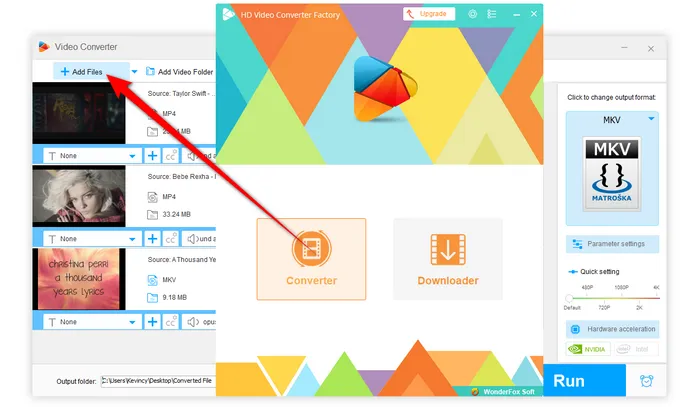
Rehearsing your presentation with integrated audio and video is crucial for a polished and impactful delivery. It allows you to identify potential issues, refine your timing, and ensure a seamless flow between your spoken words and the multimedia elements. This section will explore the importance of practice, how to gather feedback, and techniques for refining your presentation for maximum effectiveness.
Rehearsing with Integrated Elements
Rehearsing is not just about memorizing your script; it’s about integrating the audio and video elements seamlessly into your presentation. This process reveals potential problems with timing, audio levels, and video quality, giving you the opportunity to address them before the actual presentation.
Obtaining Feedback and Making Improvements
Gathering feedback is essential for refining your presentation. Constructive criticism helps you identify areas for improvement that you might have missed during your own practice sessions.Here’s how to obtain feedback effectively:
- Record Your Rehearsals: Record your practice sessions, both audio and video. This allows you to review your presentation from an audience’s perspective. Pay attention to your pacing, body language, and how the audio and video elements are perceived.
- Seek Feedback from Multiple Sources: Ask colleagues, friends, or family members to watch your presentation and provide feedback. Their perspectives can highlight areas for improvement that you might not be aware of. Consider asking individuals with varying levels of expertise in the presentation topic.
- Use a Feedback Template: Provide your feedback providers with a template to guide their observations. This ensures you receive specific and actionable feedback. The template might include sections on clarity of the message, effectiveness of the audio and video elements, engagement level, and overall flow.
- Be Open to Criticism: Approach feedback with an open mind and a willingness to learn. Don’t take criticism personally; instead, view it as an opportunity to improve your presentation.
- Incorporate Feedback: After gathering feedback, carefully consider each point and make necessary adjustments to your presentation. Prioritize the feedback based on its impact and relevance to your presentation objectives.
Evaluating Audio and Video Effectiveness
Assessing the effectiveness of your audio and video elements is essential to ensure they contribute to your presentation’s objectives. This evaluation helps you understand if your chosen elements are enhancing the audience’s understanding and engagement.To evaluate effectiveness:
- Align with Objectives: Ensure your audio and video elements align with your presentation’s objectives. For instance, if your goal is to demonstrate a process, the video should clearly illustrate each step. If your goal is to evoke emotion, the audio and video should complement each other to achieve this effect.
- Measure Audience Engagement: During your rehearsals, observe how your audience reacts to the audio and video elements. Are they engaged, or do they seem distracted? Consider asking for audience feedback, such as:
- “Did the video help you understand the concept better?”
- “Did the audio enhance the overall message?”
- Assess Clarity and Quality: Evaluate the clarity of the audio and video. Is the audio clear and audible? Is the video of sufficient quality and resolution? Poor quality audio or video can detract from your message.
- Evaluate Integration: Assess how well the audio and video elements are integrated into your presentation. Do they flow seamlessly, or are there awkward transitions?
- Analyze Data (If Possible): If presenting online, use analytics tools to measure audience engagement metrics, such as time spent watching videos, click-through rates, and audience retention.
Handling Unexpected Technical Glitches
Technical glitches can happen during live presentations, but being prepared can help you minimize their impact. Have backup plans in place to ensure a smooth delivery, even when things go wrong.Here’s a list of tips for handling unexpected technical glitches:
- Prepare a Backup Plan: Have a backup plan in place for potential technical issues. This might include a separate laptop with a copy of your presentation, pre-downloaded videos, and a backup audio recording.
- Test Your Equipment: Thoroughly test all your equipment, including your laptop, projector, microphone, and speakers, before your presentation. Conduct a dry run in the actual presentation environment to identify any potential issues.
- Troubleshoot Common Problems: Familiarize yourself with common technical problems, such as audio feedback, video freezing, and internet connectivity issues. Know how to troubleshoot these issues quickly.
- Have a Scripted Response: Prepare a short, scripted response to address technical difficulties. This will help you maintain your composure and reassure your audience while you resolve the issue.
- Keep Calm and Carry On: Stay calm and don’t panic if a technical glitch occurs. Apologize to the audience, explain the situation, and let them know you are working to resolve the issue.
- Have a Plan B for Video: If your video fails, be prepared to describe the video content, or use still images. If audio fails, consider reading the script that was to accompany the audio.
- Engage Your Audience: Use the opportunity to engage your audience while you resolve the technical issue. Ask them a question related to your presentation topic or encourage them to share their thoughts.
- Seek Technical Assistance: If possible, have a technical assistant on hand to help you resolve technical issues. This person can quickly identify and fix problems, allowing you to focus on your presentation.
Final Conclusion
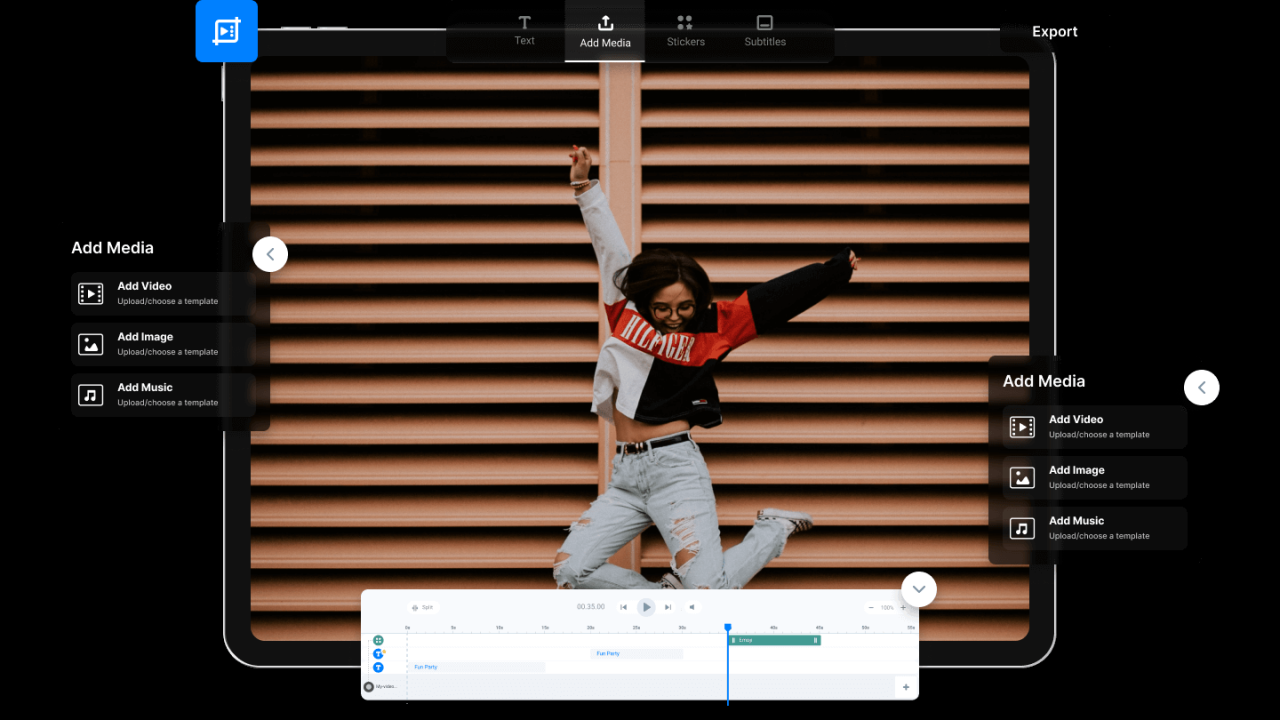
In conclusion, mastering the integration of video and audio is about more than just the technical aspects. It’s about crafting a compelling narrative, understanding your audience, and using multimedia to amplify your message. By following the steps Artikeld in this guide, you’ll be well-equipped to deliver presentations that are not only informative but also engaging and unforgettable. Go forth and transform your talks!